![paragon logo-1.png]](https://support.paragon-erp.com/hs-fs/hubfs/paragon%20logo-1.png?width=240&height=75&name=paragon%20logo-1.png)
Introduction
This article explains how to add inventory to a product that does not have any stock or has stock in one location, but is missing stock in another location.
Step-by-step instructions
-
Step 1: Access the inventory module
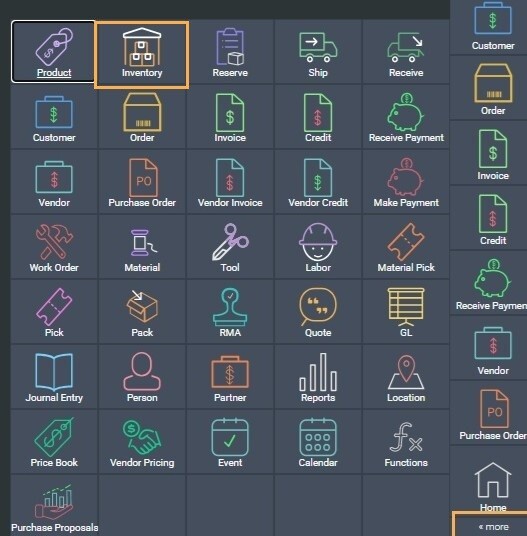
In the more menu select the inventory module.
-
Step 2: Select location
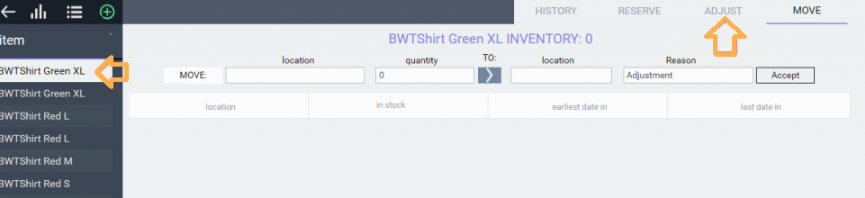
Select the appropriate item and click on the adjust tab.
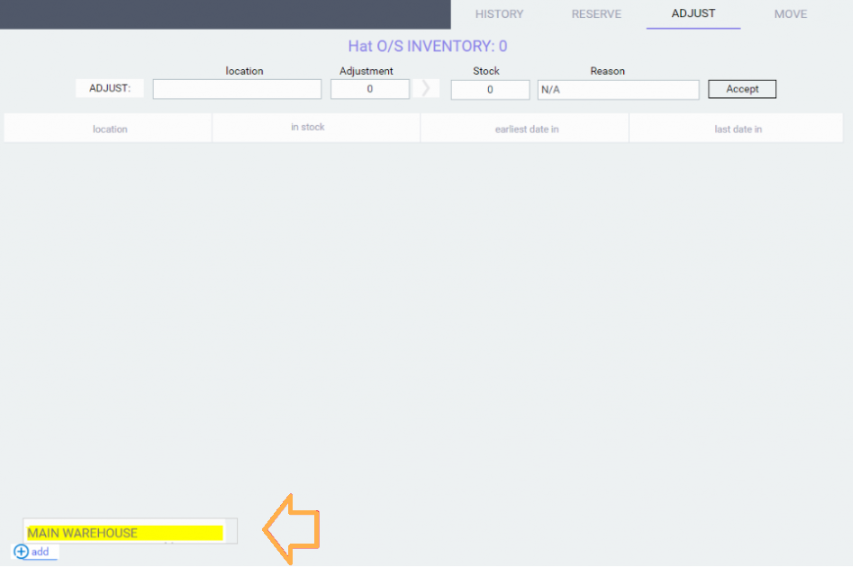
On the bottom left-hand corner click on add and select the appropriate location.
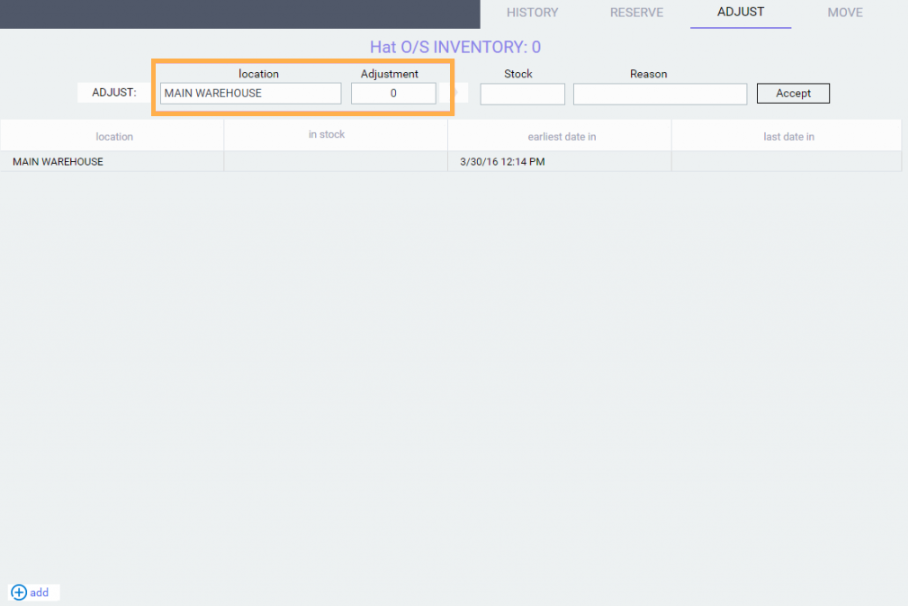
The location selected will show at the top of the screen.
-
Step 3: Adjust stock
Enter the units under adjustment. The units entered will automatically populate in the stock column. 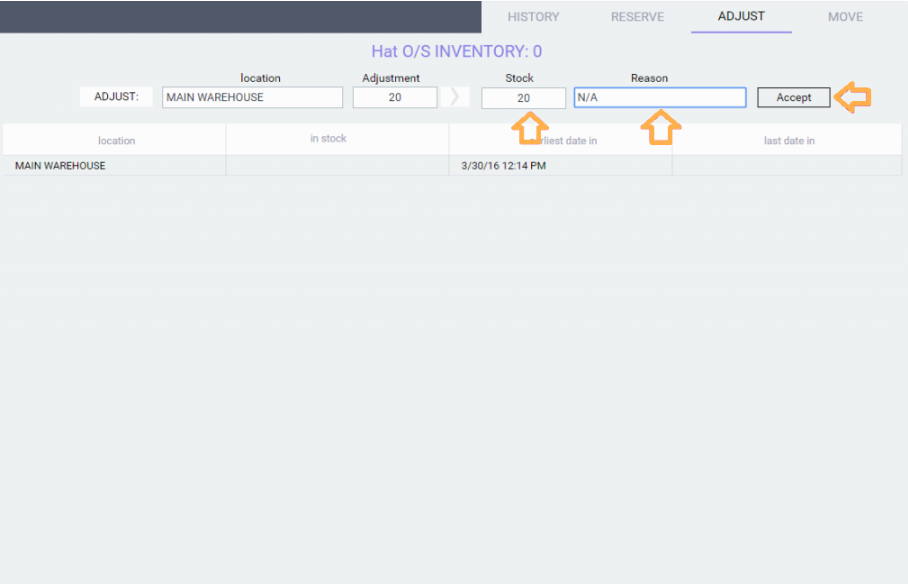
-
Step 4: Click accept
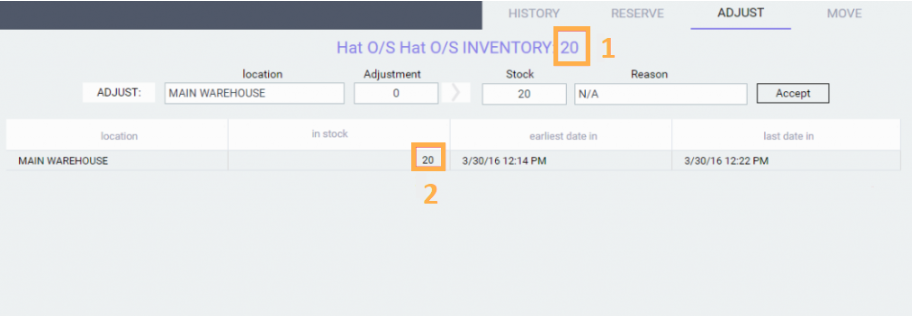
Enter the appropriate reason code and select accept. When you click on accept two things happen:
- The total inventory for this stock (center of the screen) will get updated.
- The table will add a record showing this adjustment.
Related articles
Now that you know how to adjust your stock, take a look at the following article that will help you keep track of the history of inventory movements.