![paragon logo-1.png]](https://support.paragon-erp.com/hs-fs/hubfs/paragon%20logo-1.png?width=240&height=75&name=paragon%20logo-1.png)
Introduction
Some companies use a third party logistics warehouse (3PL) to store and ship its products. This article will explain how to create these related warehouses in ParagonERP.
Prerequisites:
Related warehouses are set up in my company settings.
Before adding your related warehouse locations, you must have vendors. Don't forget to activate them.
Make sure that the vendor's shipping address is the address of the 3PL location where the goods are held. This address will be used later when creating the location in ParagonERP.
Step-by-step:
There are two steps required to complete the setup of your related warehouses.
-
Step 1: Link the vendor to your company
Once you have created the vendors that relate to your 3PL warehouses, you will have to create a link between the vendor and the warehouse location in my company settings.
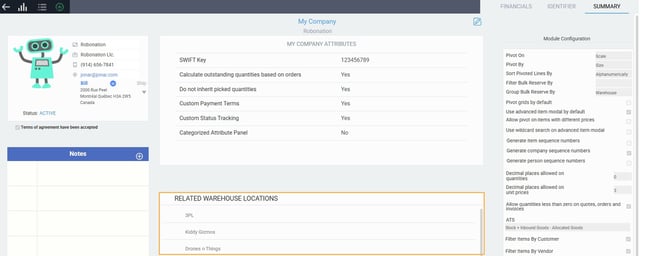
Click the edit button on the my company screen. This will allow you to add or edit the related warehouse locations modal.
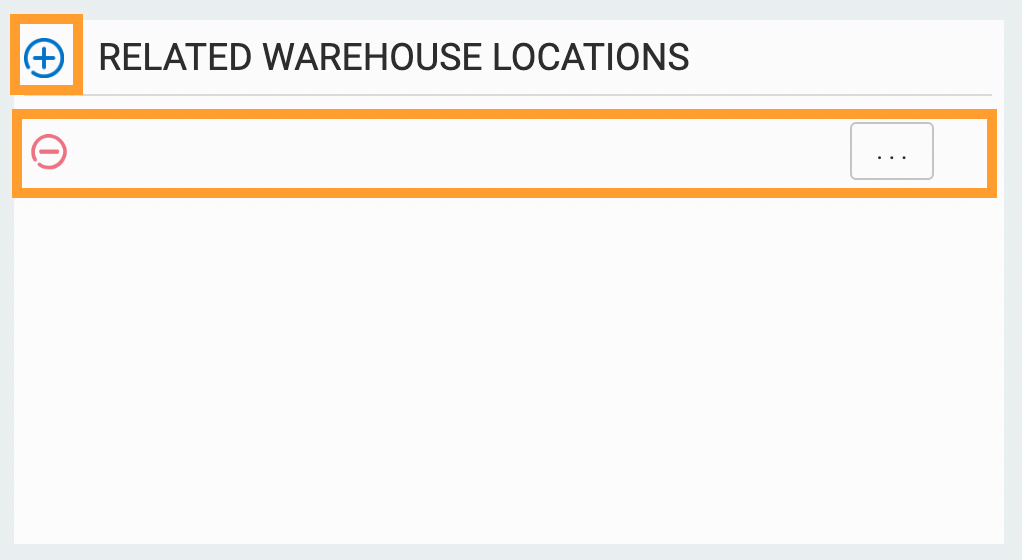
Click the add new button. An empty field will appear. Click on the ellipsis icon (3 dots) to the right of the field. A dropdown list of vendors will appear. Select the vendor you want to relate to a warehouse. (You can add as many as you want.) 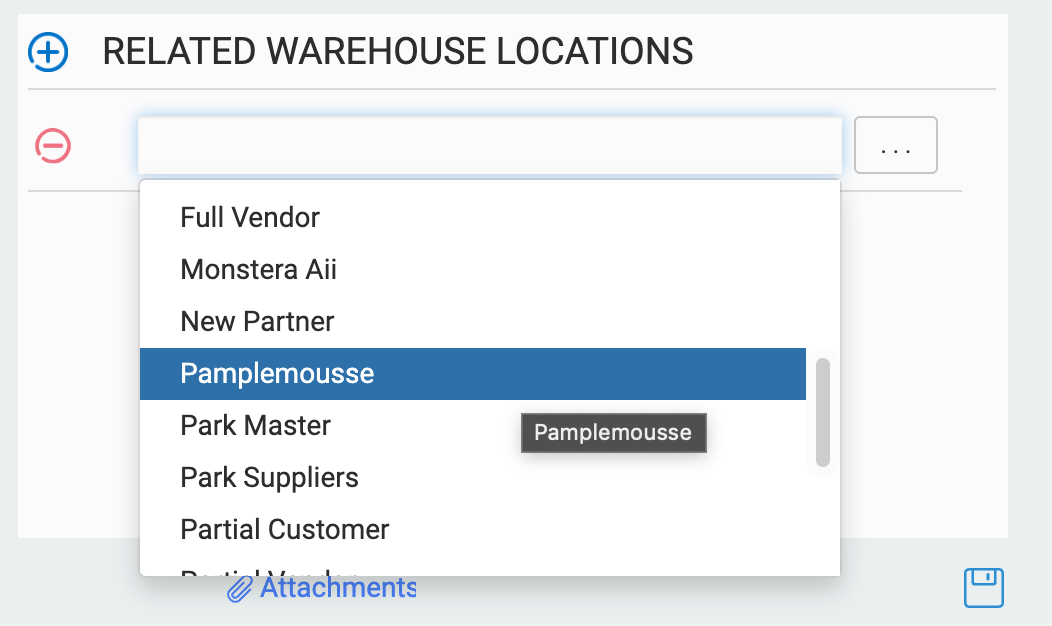
-
Step 2: Add new warehouse location
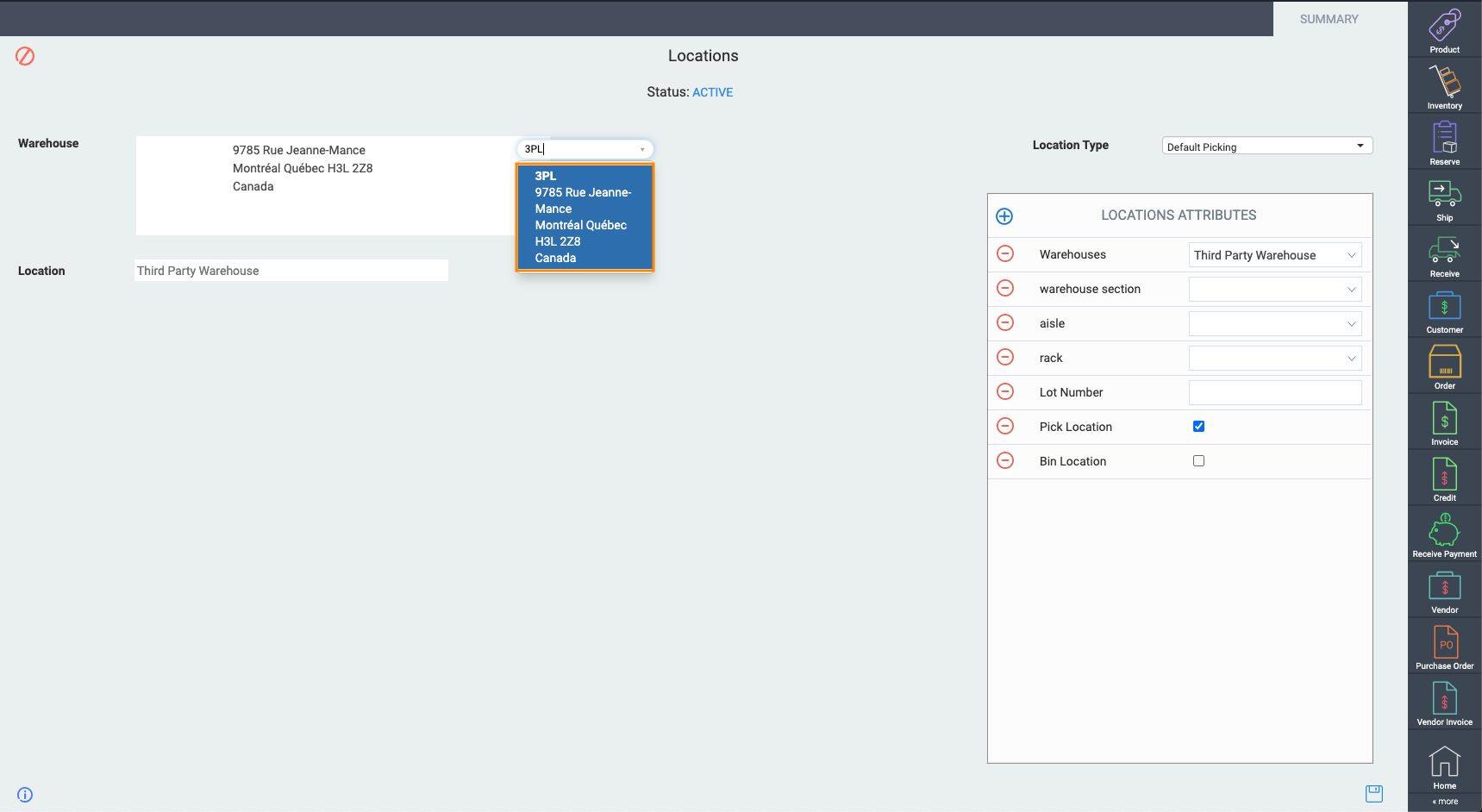
Now that the vendor account has been linked to your company, you will need to create a new warehouse location corresponding to that warehouse. Remember to select the address that you previously set up in your vendor account.
Related articles:
The following articles will help you understand how warehouse locations are used in ParagonERP.
Move inventory across locations
Assign a location to a pick ticket