![paragon logo-1.png]](https://support.paragon-erp.com/hs-fs/hubfs/paragon%20logo-1.png?width=240&height=75&name=paragon%20logo-1.png)
Introduction
Let's face it - an ERP system does not run itself. People need to interact with the system to get the best results. This means giving people (users) access to the system in whatever capacity they may need to do their jobs efficiently. All users who are granted access to Paragon must be linked to a security profile. Each profile defines which areas of the system can be accessed. So, before you can create your user, you will have to create user security profiles.
Go to the user management screen
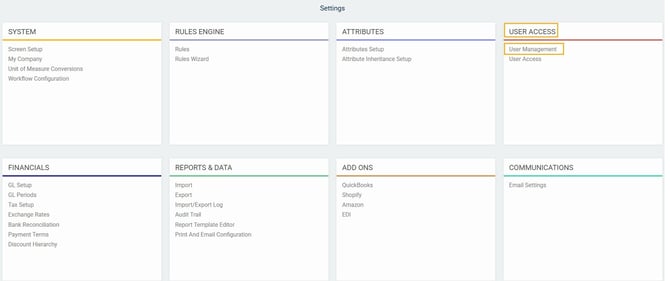
Once you have created a security profile, you are ready to create new users. From any screen, click on the settings button at the top right.

Under the user access card, click user management.
Add a user


The right side of the screen is for administrator settings.
Activate new user upon creation - Choose this option if you want the user to be activated immediately. Otherwise, you will have to activate the user separately after activation.
Click the green check make to create the user.
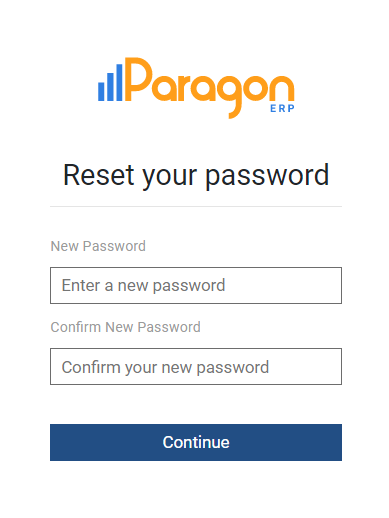
The Manage my account button is only accessible by the administrator of the system or by ParagonERP.
Users for picking, purchasing, service or sales
Users can have a role that is embedded in the organisation: e.g. a purchaser or a picker. For these users a special setup is required:
- Picker: a picker is a person to whom Pick tickets and Inventory transfers can be assigned. The Picker role is normally used in combination with paragonWMS. By assigning a picker to a transaction, it is ensured that only that user will see the transactions he/she needs to perform.
- Purchaser: a purchaser is a person who has the ownership of a certain product and purchases. Purchaser is used on the following modules:
- Products: often a purchaser has the responsibility for a set of products
- Vendors: often a purchaser has the responsibility for a group of vendors
- PO Proposals: in case multiple purchasers exist, a purchaser would like to see the PO proposals for his products
- Purchase orders: by adding a purchaser to a purchase order it is easier to address questions and inquiries.
To provide a user in the role of Picker, purchaser or Sales person create 1. a person and 2 a user. Assign the person to the user profile.
Deactivating a user
If someone leaves your organization, you will want to remove them from your list of approved users in ParagonERP.
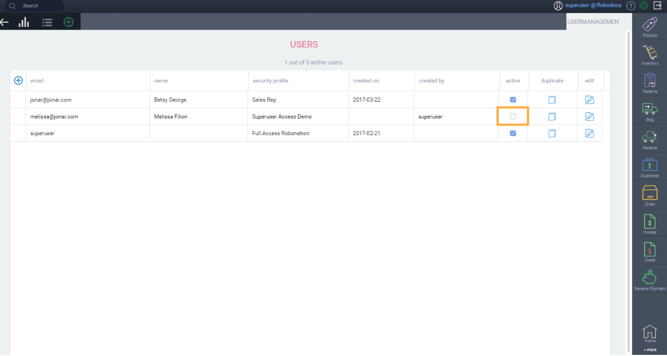
To deactivate a user profile, click the active check box. Once it is blank, the user will no longer have access to Paragon.
What's next?
Now that you have users linked to security profiles, the process above can be used to add new users or edit existing users at any time. The following article may also be of help to you.