![paragon logo-1.png]](https://support.paragon-erp.com/hs-fs/hubfs/paragon%20logo-1.png?width=240&height=75&name=paragon%20logo-1.png)
Introduction
In ParagonERP, when you export your data, you can edit attribute associations in Excel and then import these changes and additions back into ParagonERP.
Step-by-step instructions:
-
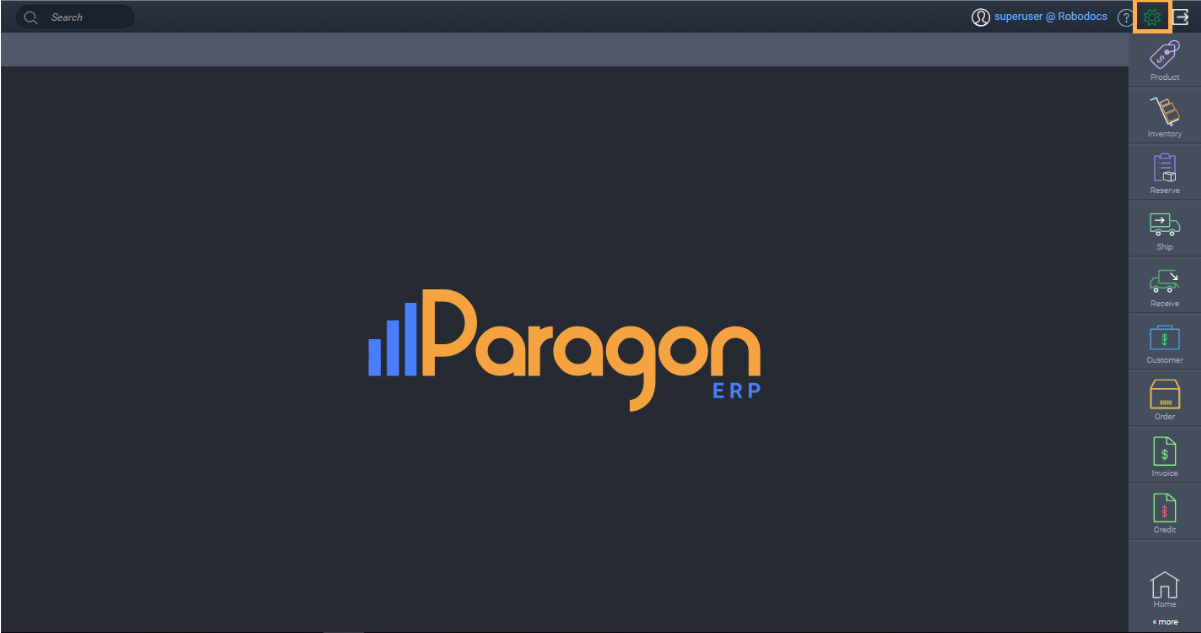
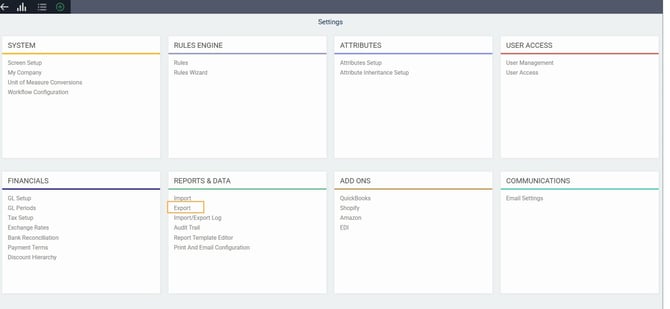
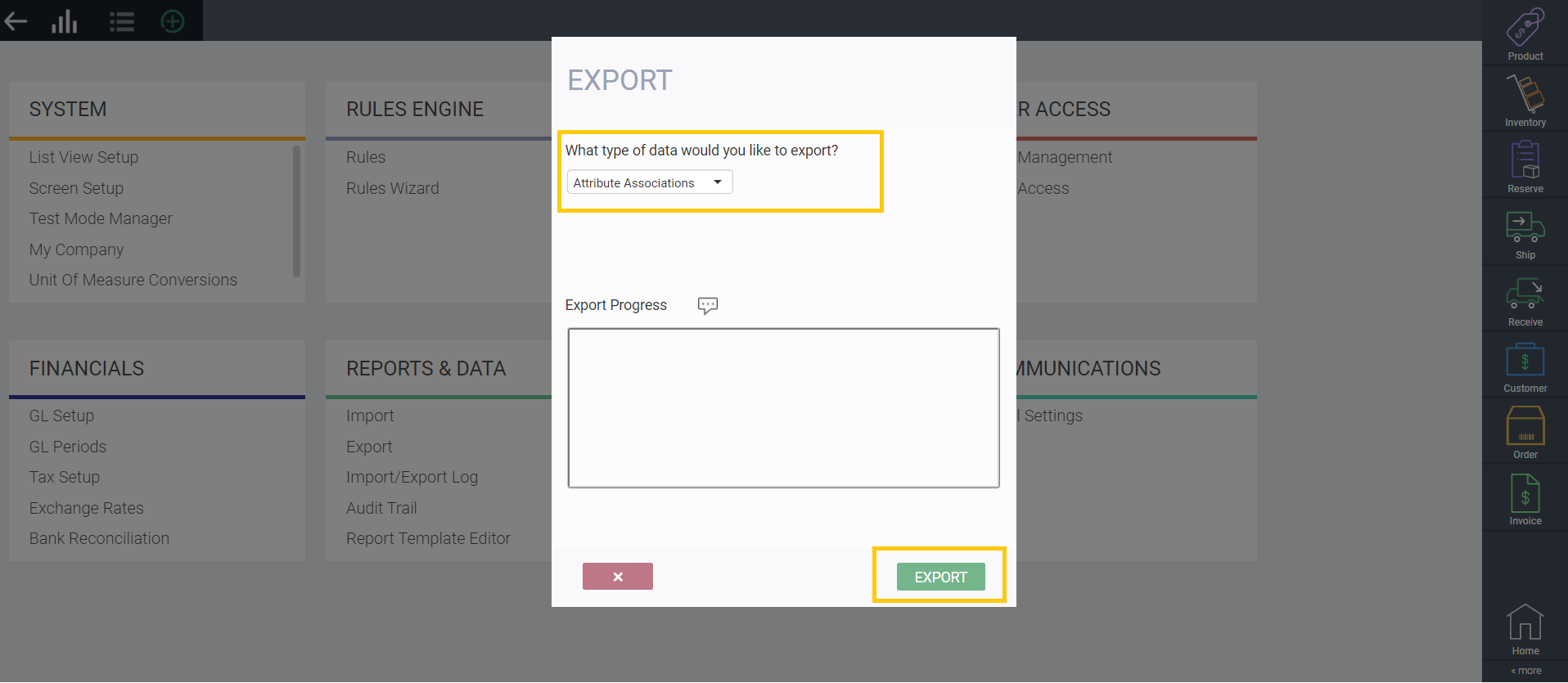
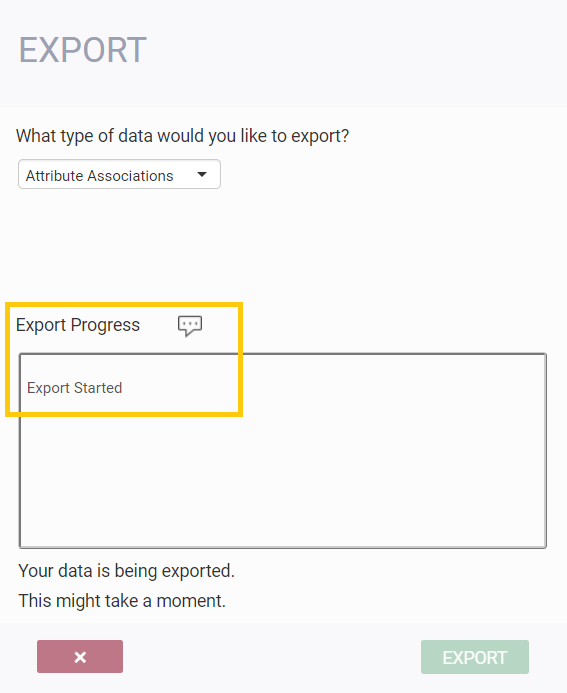
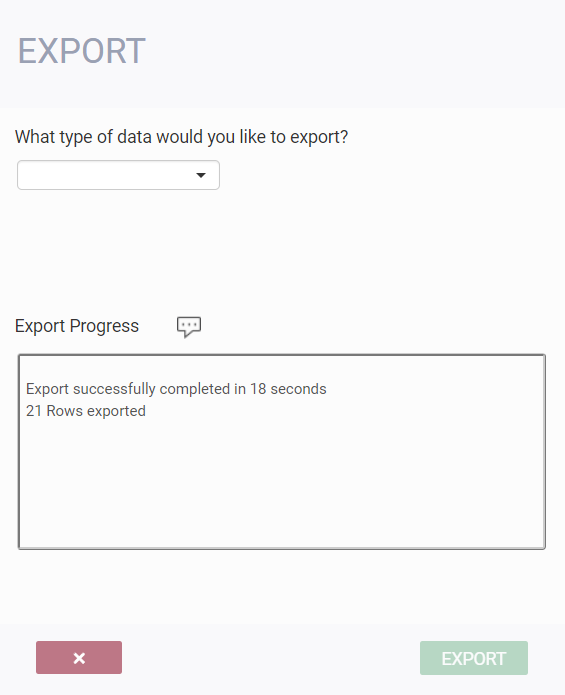
Step 1: Export existing associations
-
Step 2: Edit attribute association data in Excel
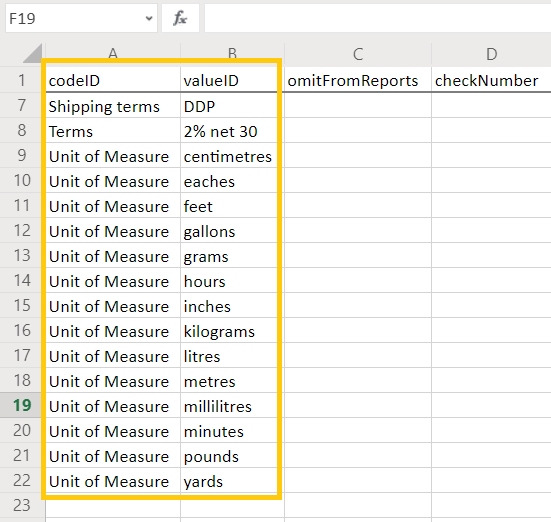
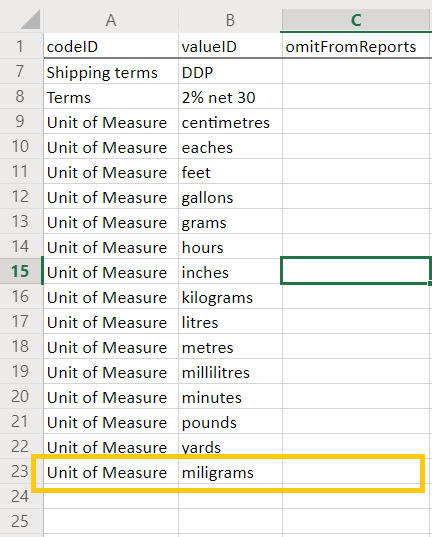
You can add additional attribute associations by following the layout shown; codeID lists the type of attribute, and the valueID lists the value itself. For this example, we will be adding another unit of measure.
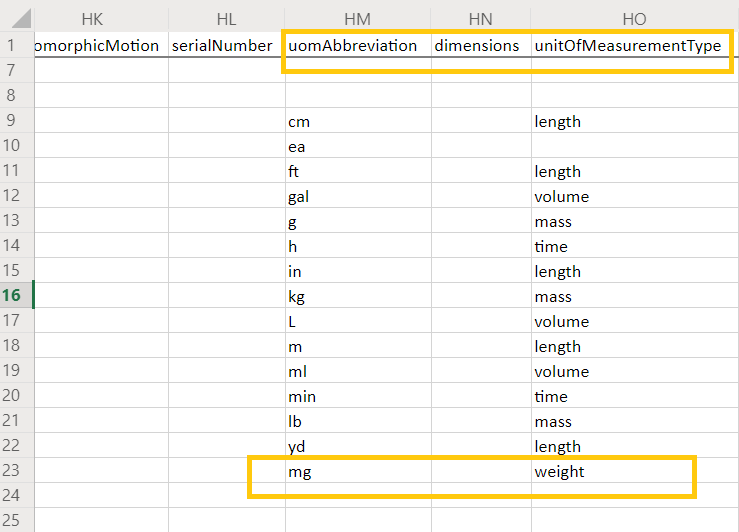
Don't forget to scroll across your sheet to find uomAbbreviation and unitOfMeasurementType as these will also need to be filled for the import to run.
-
Step 3: Import new data
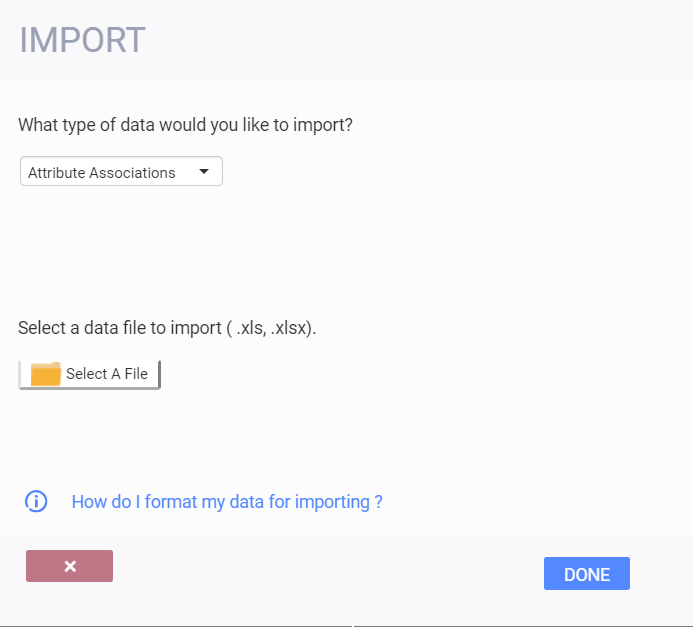
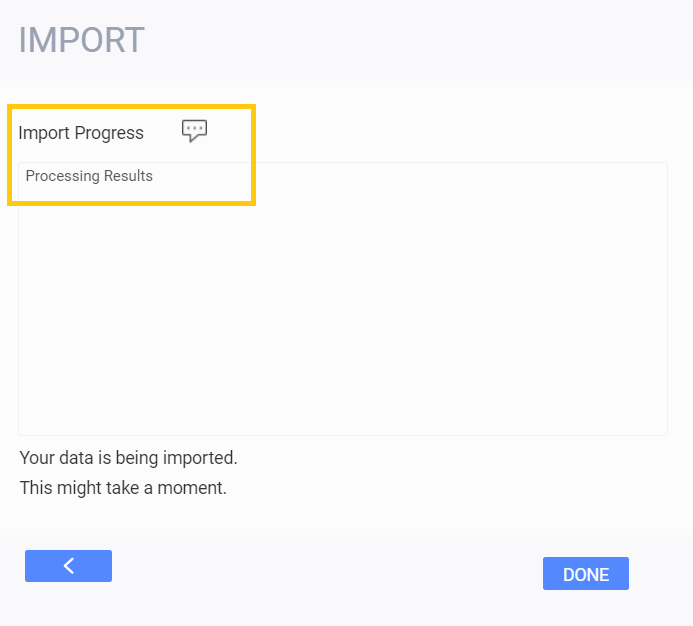
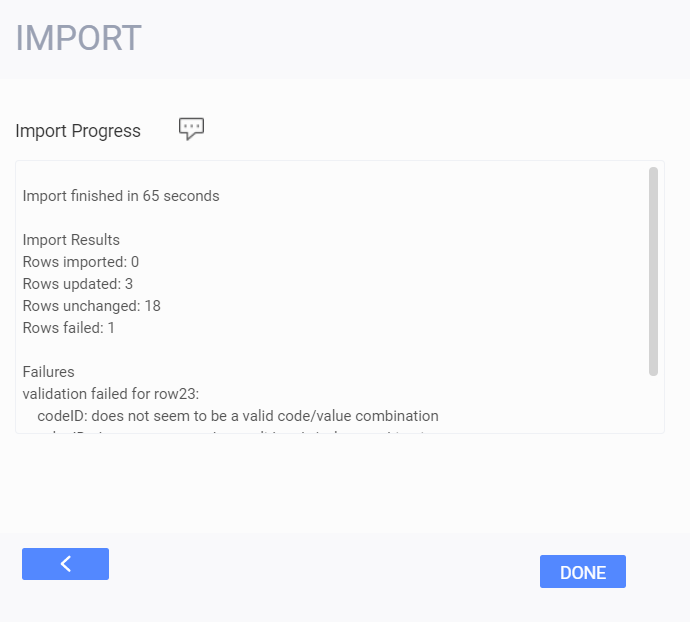
-
Step 4: Activate new attribute associations
Once your file is uploaded, navigate to attribute setup from the settings screen. From here, you can search for your attribute association type. Click the edit button to see the full list.
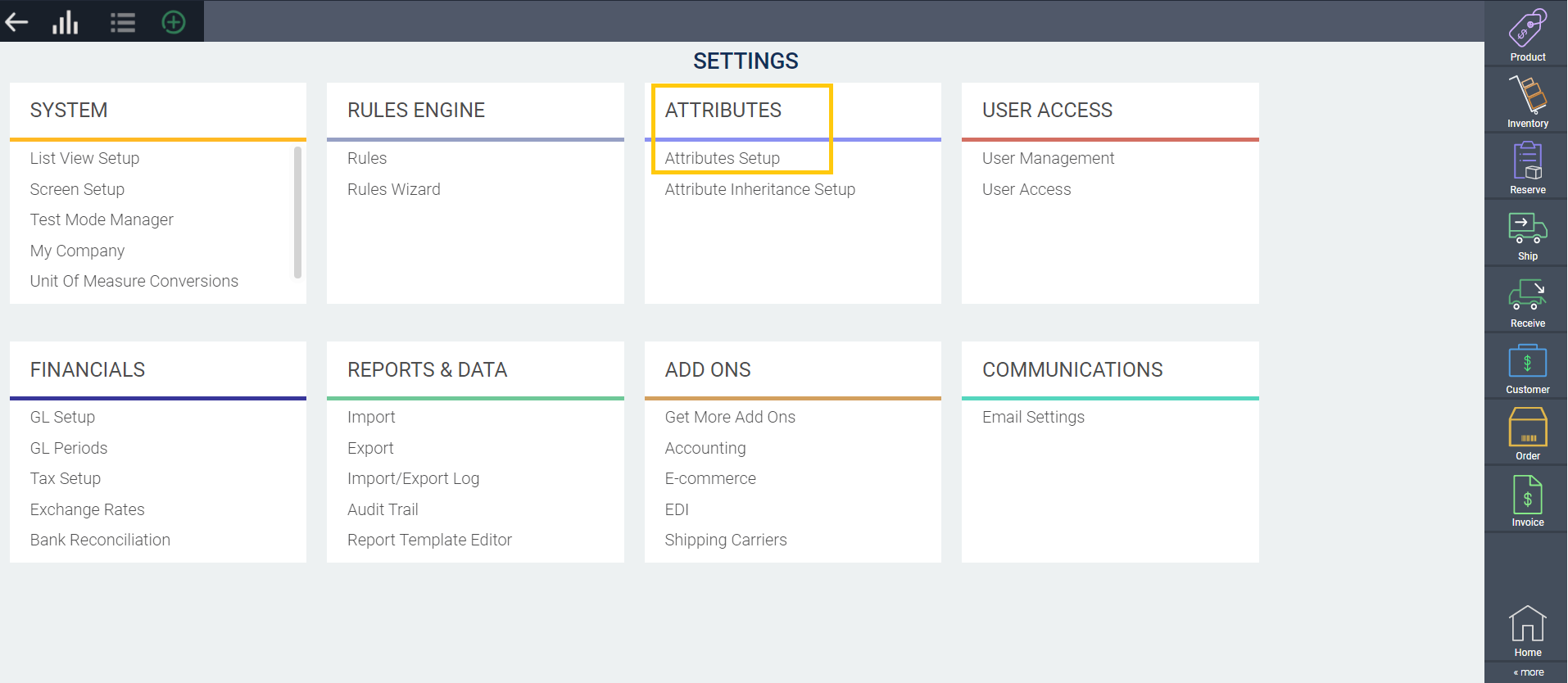
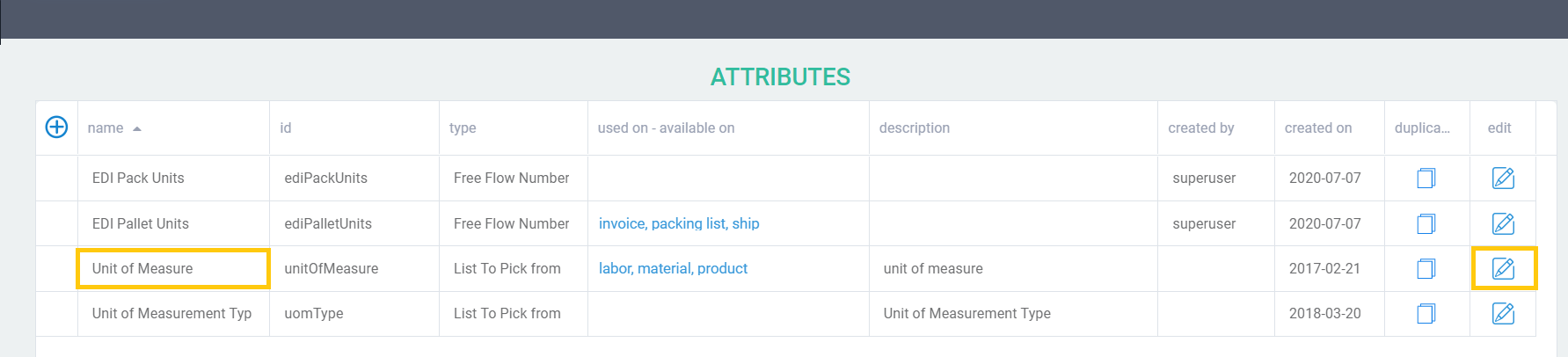
You should now be able to see your newly added data. Click edit on your new attribute line.
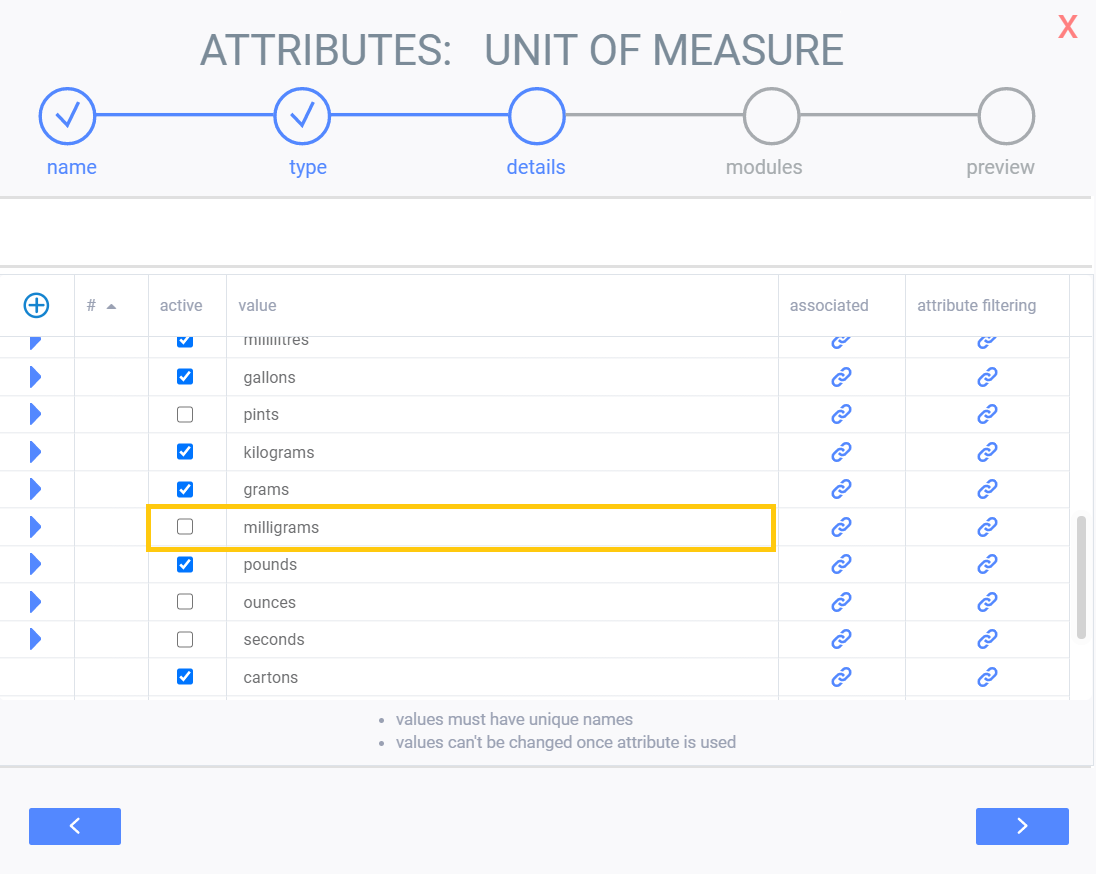
Click the box to activate the new attribute.
Related articles:
The following article will help you set up attribute associations that you may want to add to your list of associations.
This article explains the export and import process in more detail.