---
title: Import, export, or transfer your data
description: The universal translator is a powerful tool that can be used to import or export large amounts of data to and from ParagonERP. You can mass update your reference modules and you can export and import transaction data.
---
[Skip to content](https://support.paragon-erp.com/import-export-or-transfer-your-data#main-content)
English
Show submenu for translations
[![paragon logo-1.png\]](https://support.paragon-erp.com/hs-fs/hubfs/paragon%20logo-1.png?width=240&height=75&name=paragon%20logo-1.png)](https://support.paragon-erp.com/?hsLang=en)
- [New Ticket](https://share-eu1.hsforms.com/1PiwaZCxTRpabuHVnQxGeXQc751y)
- [Tickets](https://help.paragon-erp.com/tickets)
- [Knowledge Base](https://support.paragon-erp.com/)
- [Sign out](https://20488534.hs-sites.com/_hcms/mem/logout)
Open main navigation
Close main navigation
- [New Ticket](https://share-eu1.hsforms.com/1PiwaZCxTRpabuHVnQxGeXQc751y)
- [Tickets](https://help.paragon-erp.com/tickets)
- [Knowledge Base](https://support.paragon-erp.com/)
- [Sign out](https://20488534.hs-sites.com/_hcms/mem/logout)
- English
Show submenu for translations
- [Go to website](https://www.paragon-erp.com/)
[Go to website](https://www.paragon-erp.com/?hsLang=en)
Welcome! Search our Knowledge Base.
- There are no suggestions because the search field is empty.
1. [ParagonERP](https://support.paragon-erp.com/?hsLang=en)
2. [Configuring Paragon](https://support.paragon-erp.com/configuring-paragon?hsLang=en)
3. [Import & Export](https://support.paragon-erp.com/configuring-paragon?hsLang=en#import-export)
October 26, 2026
# Import, export, or transfer your data
### **Introduction**
This document will explain how to export, add records and then re-import your data files.
### **Process description:**
The **universal translator** is a powerful tool that can be used to import or export large amounts of data to and from ParagonERP. You can mass update your reference modules and you can export and import transaction data.
It is important to note that ParagonERP needs to be configured with [attributes](https://support.paragon-erp.com/what-are-attributes-and-attribute-values?hsLang=en) and screen setup **before** you try to import new data for your references and [transactions](https://support.paragon-erp.com/setting-up-transaction-screens?hsLang=en).
### **Step-by-step instructions:**
- #### **Step 1: Access the import and export functions**
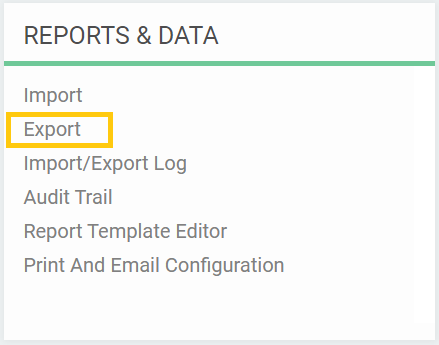
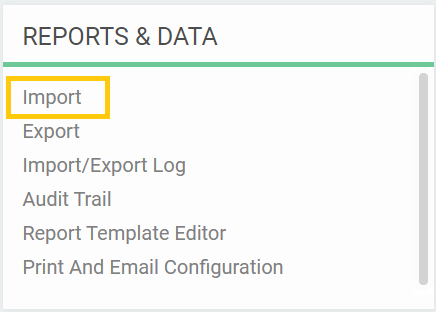
To access the import and export functions, click the **settings** button from anywhere in ParagonERP and you will see **import** and **export** under the **reports & data** card.


- #### **Step 2: Export your configuration or data**
Click on **export** under the **reports & data** card.
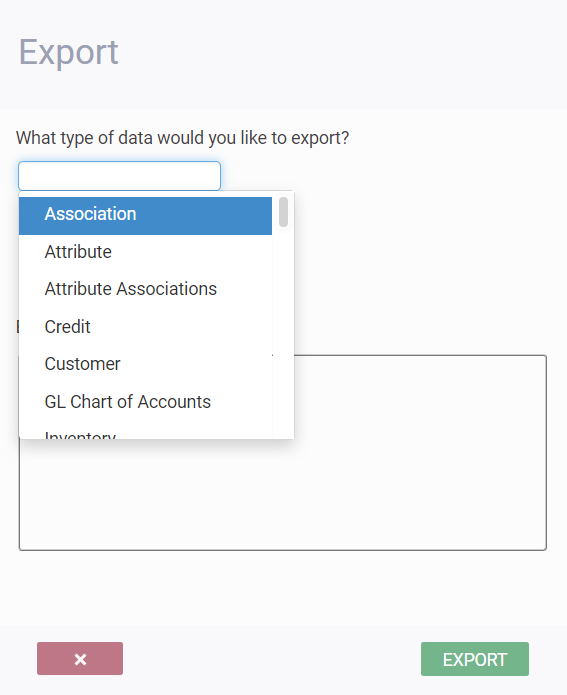
From the first drop-down scroll, select the module you'd like to export.
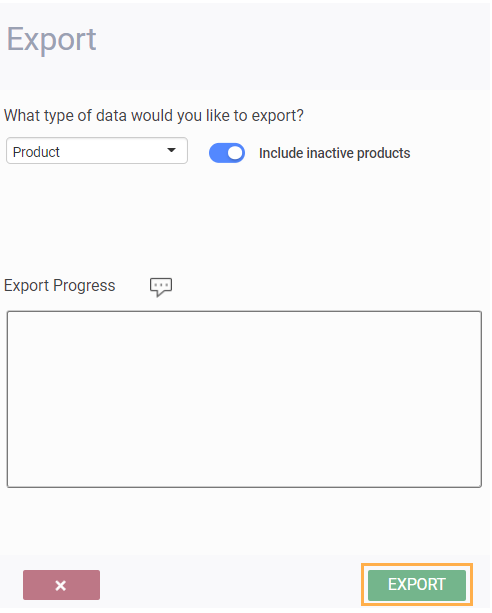
If you have selected a reference module, such as products, customers or vendors, you will have the option to **include inactive** references using the toggle button on the right. In this example, we have selected **product**. When you're ready, click **export**.
Paragon will start exporting your data into a spreadsheet format. The text box below your selections on the screen will provide you with the detail of the actions taken and their outcome.
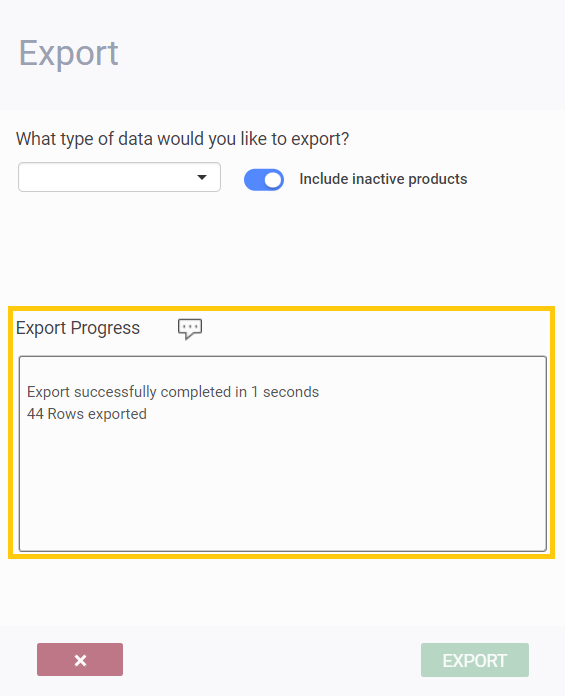
Note that your browser may block the file as a security measure. Be sure to allow popups for this URL. The export will go into your *downloads* folder.
- #### **Step 2a: View your exported data**
After opening your newly downloaded file, the attributes that are configured on the screen will appear as columns in an excel sheet.
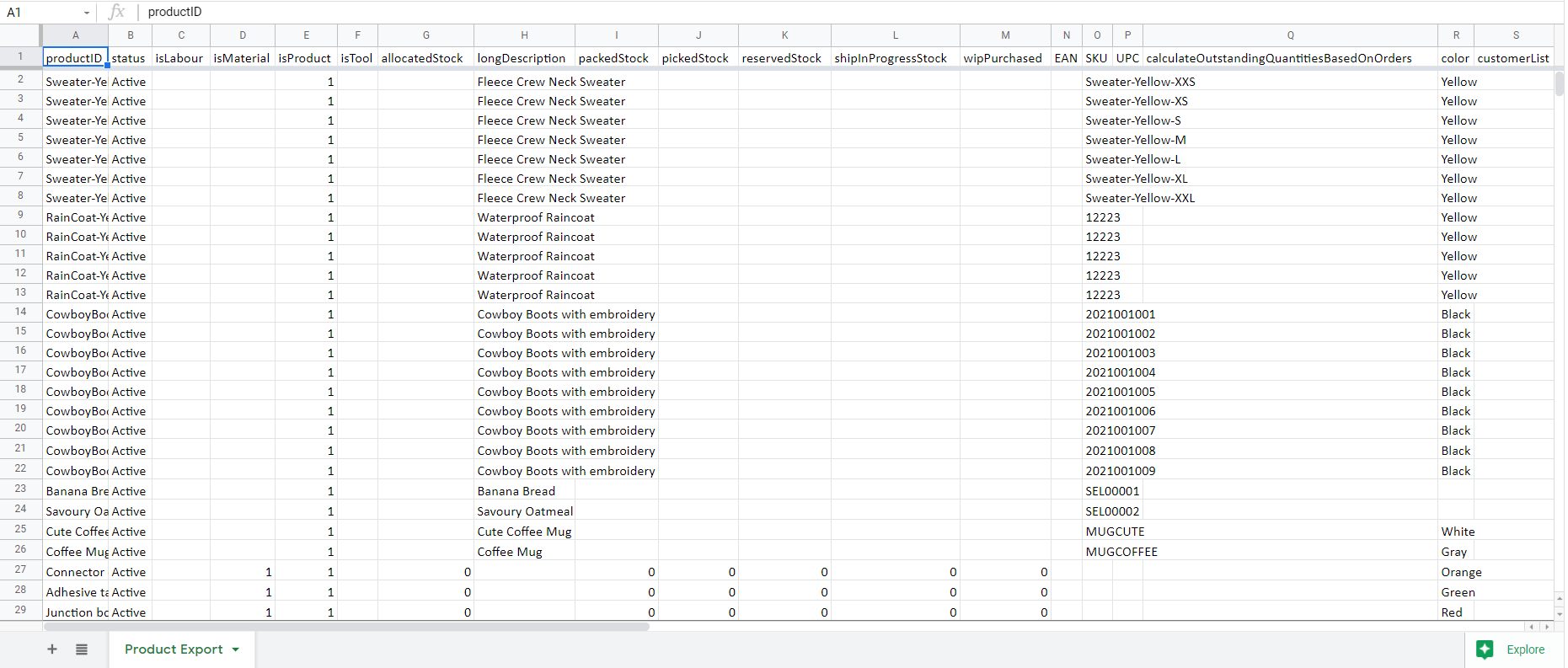
To understand the structure of the export, it may help to visit the module or screen set up for the module in order to view all of the attributes related to your export.
The first column is always the unique identifier of the record. This corresponds to **code** in the screen setup. There are additional columns in the spreadsheet as well, including:
1. **Status** - This can be set to **active** and **inactive**. Depending on the status of the reference, you can perform [specific actions](https://support.paragon-erp.com/how-do-statuses-work?hsLang=en) in Paragon.
2. **isMaterial, isProduct, isTool, isLabor** - Use these columns to identify the type of record that you are importing. If the record that you are importing is a product, set the **isProduct** field to 1. Follow the same rules for material, labor or tool.
Do not modify the names of columns. As explained, the columns are mapped to attributes that are set up on the module you're exporting
- #### **Step 2b: Add to or manipulate your export**
Here are the requirements for importing your edited file. If these are not respected, the **import log** will inform you that some of the data could not be loaded and will provide an explanation as well as the corresponding row number(s) on the spreadsheet.
- Attributes set up as drop-down lists must be entered exactly as is on the spreadsheet. Suggested values will not appear. If you have not added attribute values to the attribute you set up, they will not be automatically loaded.
- You must set the status, i.e. **temp** (only for transactions) **active** or **inactive** (only for references)
- Check-mark attributes need a value of 0 or 1 (0 = unchecked and 1 = checked)
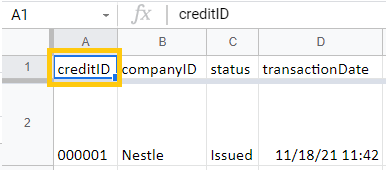
- For references: You must enter a *unique* *record ID* in the column "xxxxID"
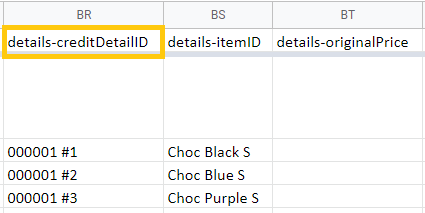
- For transactions: You must enter a *unique* *record ID* in the column "xxxxID" and for each line in the column "detailsxxxxDetailID"
- Certain attributes come in pairs (like money attributes); therefore the sequence of the columns is important when importing your data. If the import column order does not respect those pairs, your import will fail.
####  
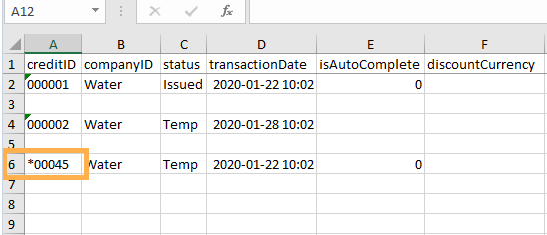
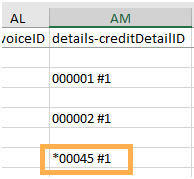
If you want to add new transactions or references manually (such as product or customers, for example) make sure to put an **asterisk (\*)** before the **transaction ID.**
If you would like to use your own ID number for your new transaction(s) or reference(s) instead of ParagonERP generating them for you, prefix your ID number with a **'~'**
If you do not use either prefix, the transaction/reference will be rejected on import as invalid.
In this example, we have imported the **credit** data and we have added new data manually:
1. imported data ID : 000001, 000002
2. new data ID : \*00045
#### 
#### 
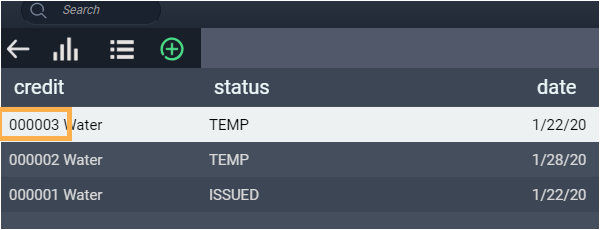
After importing, ParagonERP will automatically set an ID based on the existing transaction ID.
Here, we set **\*00045** as the credit ID and ParagonERP renamed it to **000003.** This is to avoid any inconsistency of data and to prevent errors.
#### 
- #### **Step 3: Import your data**
Click on **import** under the **reports & data** card.
#### Please note that the current maximum size limit of a file to be imported should not exceed 1MB.
#### 
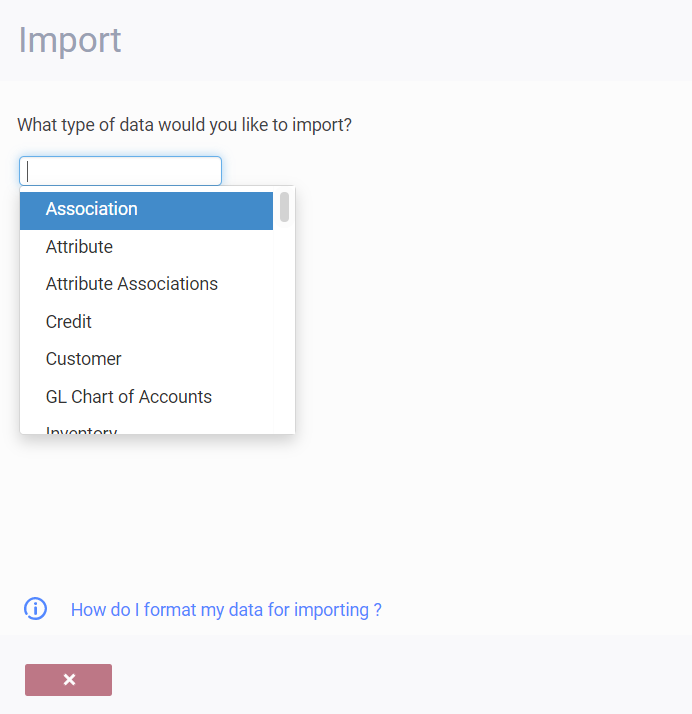
Select the type of data that you wish to import or update - e.g. products, customers, vendors.
Be aware that if you are importing data that would usually include address information, please refer to the [Import Addresses](https://support.paragon-erp.com/exporting-and-importing-addresses?hsLang=en) article for more in-depth explanations.
#### 
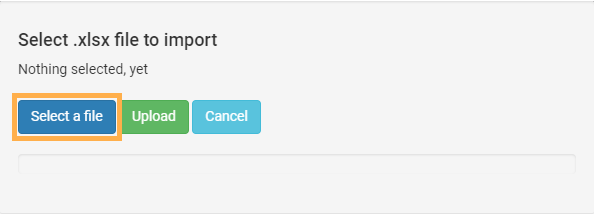
Then click **select a file**.
#### 
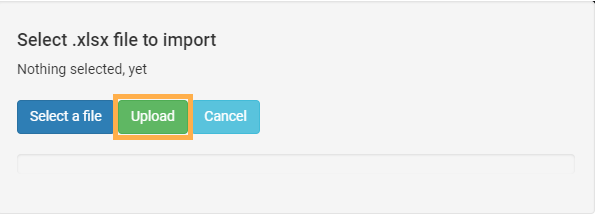
Once you've chosen the correctly formatted file you'd like to import, click **upload**.
#### 
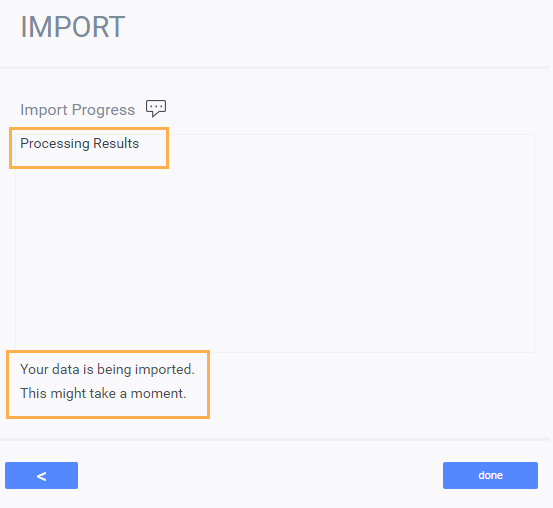
Paragon will start importing your data from the spreadsheet selected.
#### 
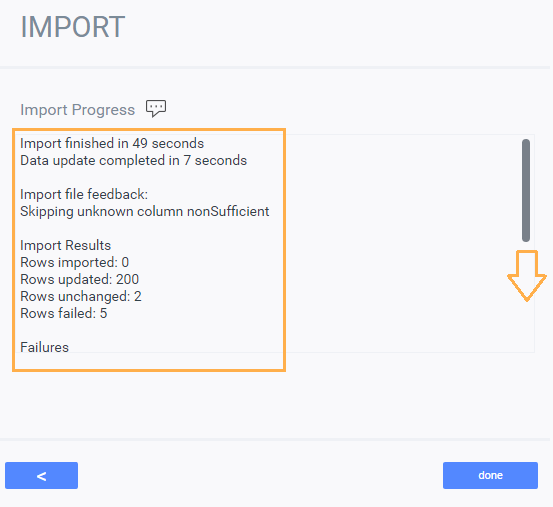
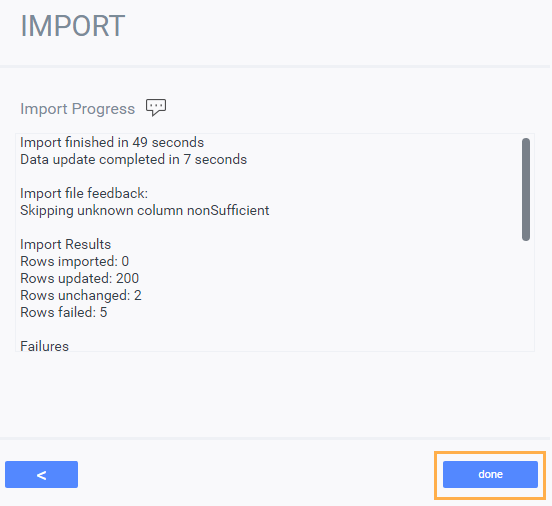
The **import** modal screen will provide you with the detail of the actions taken and their outcome. If any rows in the spreadsheet were unsuccessful in the import, a reason will be given. If you do not see this information on the modal screen, you can scroll down to see additional information.
Any columns in the excel file that failed to import will be mentioned under **import file feedback.** In this example, the attribute code **nonSufficient** failed to import because it was removed from the screen set up for **product** at the time of import. You will see a similar error message if you try to import a column for which the attribute was never created and applied to [screen setup](https://support.paragon-erp.com/how-to-set-up-reference-screens?hsLang=en) in Paragon.
#### 
#### 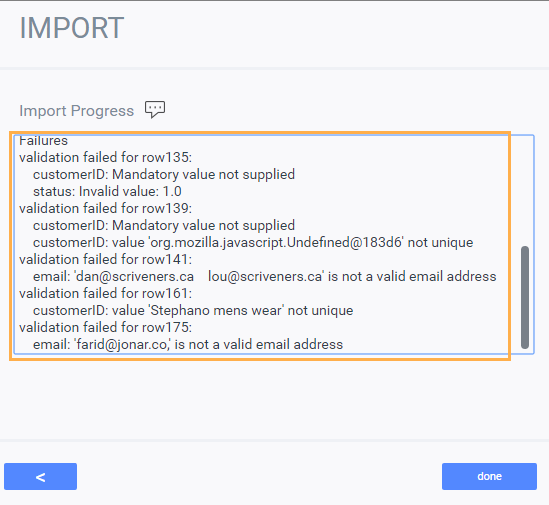
You can also see your import feedback in real-time messages. Click the **refresh** button at any time to see a dynamic view of the imported rows and any errors encountered.

If there are failures, you can correct your file and return back to the previous step by clicking the **back** button.
Please note that any column that fills data in a *drop down* attribute will fail to import if the data has not already been configured for that attribute. For example, if you are trying to import colors in your product file and your file contains color black but the color attribute in ParagonERP only contains options for colors red, blue and green; the import for that record will fail and return a message like the one sampled above.
If you're satisfied with the import, click **done**.
#### 
- #### **Step 3a: Halt an import before it's completed**
If for any reason you decide to stop an import after it has begun, click the **stop import** button at the bottom of the import modal.

The same button will change to say **confirm.** Click it to stop the import.

The import modal will show a message saying *User aborted*.

Any data already imported or updated before the confirmation button is pushed will be saved in Paragon.
- #### **Step 4: Import/export log**
In the **import/export log** you can see the history of the imported files as well as the details of the actions taken and their outcome.
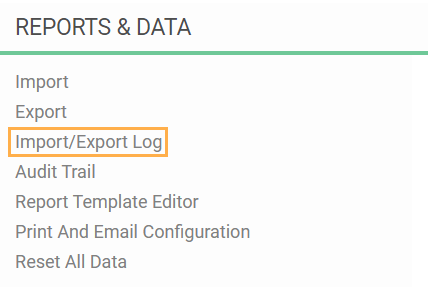
Go to **Settings -\> Reports & Data** and open the import/export log:
#### 
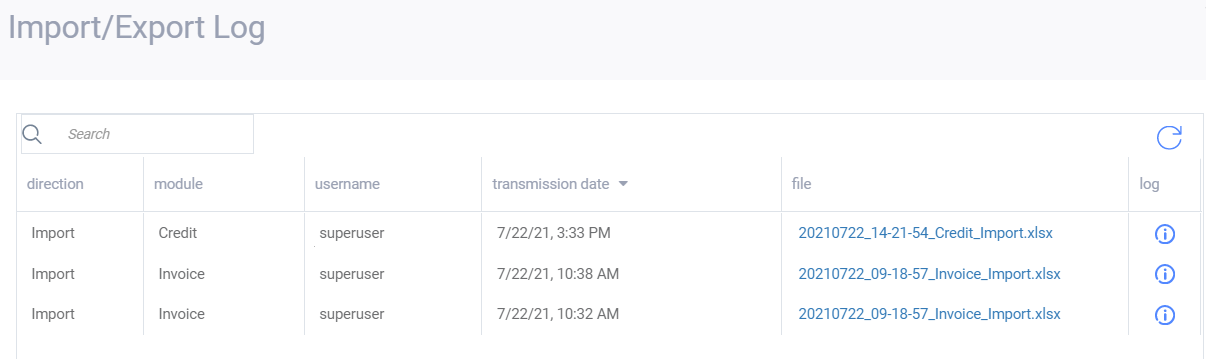
You will see the history of all the imports or exports that have been made:
#### 
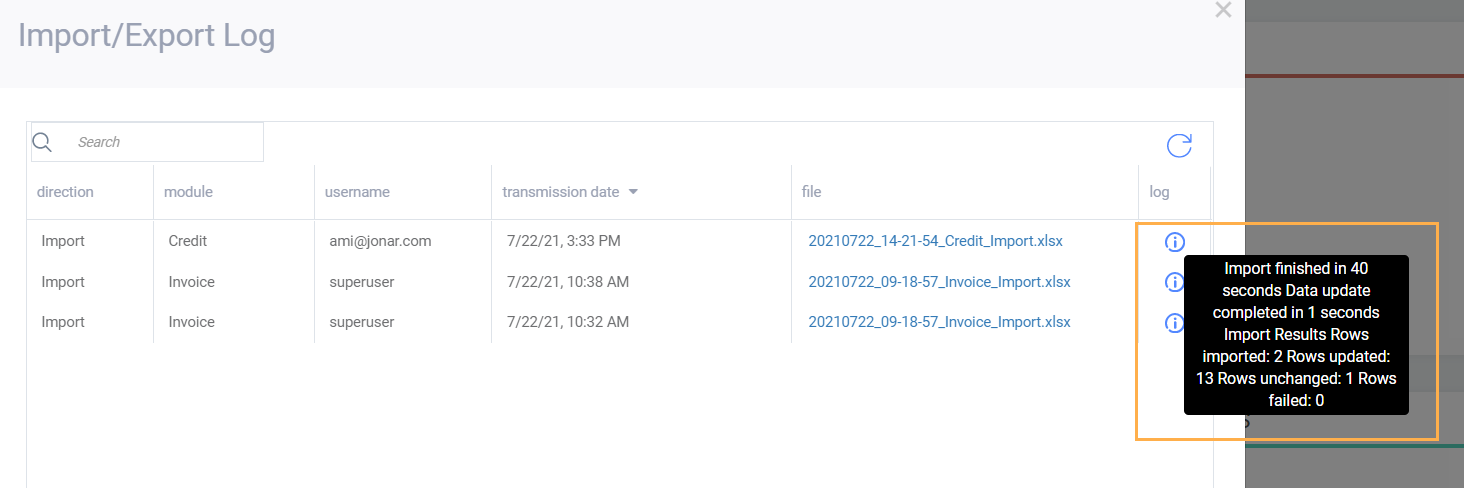
If you hover over the information button it will show you the details:
#### 
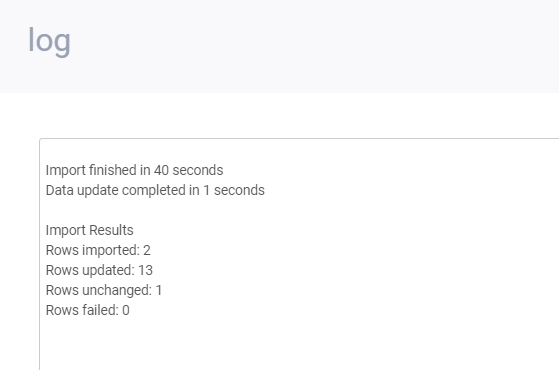
If you want to see the details in full - click the **information** button and a **log** modal will appear.
#### 
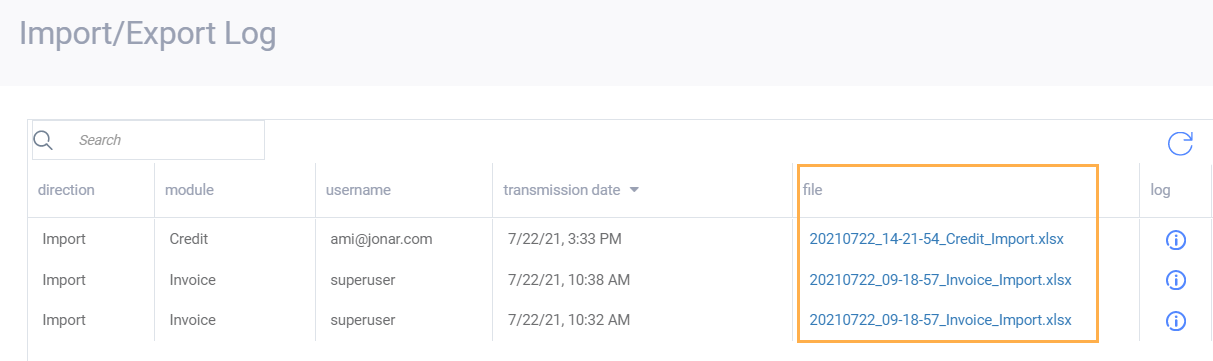
From the Import/Export Log you can also **download the imported files** by clicking on the file name.
#### 
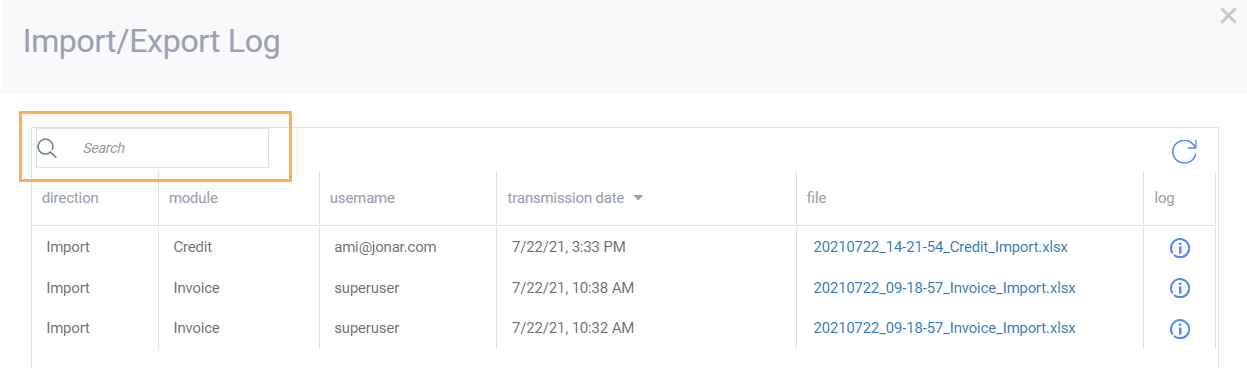
If you are looking for details on a specific import you can also use the *search bar* to filter the log entries.
#### 
### **What's next?**
Here are examples of other files that can be imported or exported.
- #### **Addresses** - [export and import addresses](https://support.paragon-erp.com/exporting-and-importing-addresses?hsLang=en) in ParagonERP.
- #### **Language attributes -** Importing and exporting [translated attributes](https://support.paragon-erp.com/language-driven-inheritance?hsLang=en) - You can also include translated attributes with the import and export feature.
Check out the following documents for more information on importing data.
- #### [How to import warehouse locations](https://support.paragon-erp.com/importing-warehouse-locations?hsLang=en)
- #### [How to import journal entries](https://support.paragon-erp.com/importing-journal-entries?hsLang=en)
- #### [Adjusting stock by importing inventory](https://support.paragon-erp.com/adjusting-stock-by-importing-inventory?hsLang=en)
- [Paragon Basics](https://support.paragon-erp.com/paragon-basics?hsLang=en#main-content)
- [ERP Fundamentals](https://support.paragon-erp.com/paragon-basics?hsLang=en#erp-fundamentals)
- [Paragon Modules & Features](https://support.paragon-erp.com/paragon-basics?hsLang=en#paragon-modules-features)
- [Basic use Paragon](https://support.paragon-erp.com/paragon-basics?hsLang=en#basic-use-paragon)
- [Advanced use Paragon](https://support.paragon-erp.com/paragon-basics?hsLang=en#advanced-use-paragon)
- [Paragon policies](https://support.paragon-erp.com/paragon-basics?hsLang=en#paragon-policies)
- [Customer](https://support.paragon-erp.com/paragon-basics?hsLang=en#customer)
- [Configuring Paragon](https://support.paragon-erp.com/configuring-paragon?hsLang=en#main-content)
- [Basic Settings](https://support.paragon-erp.com/configuring-paragon?hsLang=en#basic-settings)
- [Advanced Settings](https://support.paragon-erp.com/configuring-paragon?hsLang=en#advanced-settings)
- [My Company Settings](https://support.paragon-erp.com/configuring-paragon?hsLang=en#my-company-settings)
- [User Management & Access](https://support.paragon-erp.com/configuring-paragon?hsLang=en#user-management-access)
- [Import & Export](https://support.paragon-erp.com/configuring-paragon?hsLang=en#import-export)
- [Attributes](https://support.paragon-erp.com/configuring-paragon?hsLang=en#attributes)
- [PDF Templates](https://support.paragon-erp.com/configuring-paragon?hsLang=en#pdf-templates)
- [Configuring - Aloha](https://support.paragon-erp.com/configuring-paragon?hsLang=en#configuring-aloha)
- [Product](https://support.paragon-erp.com/configuring-paragon?hsLang=en#product)
- [Associations](https://support.paragon-erp.com/configuring-paragon?hsLang=en#associations)
- [Purchase](https://support.paragon-erp.com/purchase?hsLang=en#main-content)
- [Vendor & Product](https://support.paragon-erp.com/purchase?hsLang=en#vendor-product)
- [Purchase Order](https://support.paragon-erp.com/purchase?hsLang=en#purchase-order)
- [In Transit & Receiving](https://support.paragon-erp.com/purchase?hsLang=en#in-transit-receiving)
- [Vendor Invoicing](https://support.paragon-erp.com/purchase?hsLang=en#vendor-invoicing)
- [Vendor](https://support.paragon-erp.com/purchase?hsLang=en#vendor)
- [Manufacturing](https://support.paragon-erp.com/manufacturing?hsLang=en#main-content)
- [Work Orders](https://support.paragon-erp.com/manufacturing?hsLang=en#work-orders)
- [Bill of Materials](https://support.paragon-erp.com/manufacturing?hsLang=en#bill-of-materials)
- [material](https://support.paragon-erp.com/manufacturing?hsLang=en#material)
- [Inventory](https://support.paragon-erp.com/inventory?hsLang=en#main-content)
- [Warehouse Management](https://support.paragon-erp.com/inventory?hsLang=en#warehouse-management)
- [Inventory Adjustment](https://support.paragon-erp.com/inventory?hsLang=en#inventory-adjustment)
- [Inventory Value](https://support.paragon-erp.com/inventory?hsLang=en#inventory-value)
- [Inventory Transfer](https://support.paragon-erp.com/inventory?hsLang=en#inventory-transfer)
- [Picking](https://support.paragon-erp.com/inventory?hsLang=en#picking)
- [Packing](https://support.paragon-erp.com/inventory?hsLang=en#packing)
- [Sales](https://support.paragon-erp.com/sales?hsLang=en#main-content)
- [Sales Order](https://support.paragon-erp.com/sales?hsLang=en#sales-order)
- [Reservations](https://support.paragon-erp.com/sales?hsLang=en#reservations)
- [Returns](https://support.paragon-erp.com/sales?hsLang=en#returns)
- [Invoicing](https://support.paragon-erp.com/sales?hsLang=en#invoicing)
- [Finance](https://support.paragon-erp.com/finance?hsLang=en#main-content)
- [Financial Settings](https://support.paragon-erp.com/finance?hsLang=en#financial-settings)
- [GL Mapping](https://support.paragon-erp.com/finance?hsLang=en#gl-mapping)
- [Journal Entries](https://support.paragon-erp.com/finance?hsLang=en#journal-entries)
- [Reports](https://support.paragon-erp.com/reports?hsLang=en#main-content)
- [Financial Reporting](https://support.paragon-erp.com/reports?hsLang=en#financial-reporting)
- [WIGO](https://support.paragon-erp.com/reports?hsLang=en#wigo)
- [Integrations](https://support.paragon-erp.com/integrations?hsLang=en#main-content)
- [QuickBooks](https://support.paragon-erp.com/integrations?hsLang=en#quickbooks)
- [Minox](https://support.paragon-erp.com/integrations?hsLang=en#minox)
- [Shopify](https://support.paragon-erp.com/integrations?hsLang=en#shopify)
- [2Ship](https://support.paragon-erp.com/integrations?hsLang=en#2ship)
- [Mobile](https://support.paragon-erp.com/integrations?hsLang=en#mobile)
- [Google](https://support.paragon-erp.com/integrations?hsLang=en#google)
- [Release Notes & Rules](https://support.paragon-erp.com/release-notes-rules?hsLang=en#main-content)
- [Rules](https://support.paragon-erp.com/release-notes-rules?hsLang=en#rules)
- [Release Notes](https://support.paragon-erp.com/release-notes-rules?hsLang=en#release-notes)
- [Transactions](https://support.paragon-erp.com/transactions?hsLang=en#main-content)
- [Receive Payment](https://support.paragon-erp.com/transactions?hsLang=en#receive-payment)
- [Transaction Basics](https://support.paragon-erp.com/transactions?hsLang=en#transaction-basics)
- [Quote](https://support.paragon-erp.com/transactions?hsLang=en#quote)
- [Sales Order](https://support.paragon-erp.com/transactions?hsLang=en#sales-order)
- [Make Payment](https://support.paragon-erp.com/transactions?hsLang=en#make-payment)
- [Credit](https://support.paragon-erp.com/transactions?hsLang=en#credit)
- [Invoice](https://support.paragon-erp.com/transactions?hsLang=en#invoice)
[](https://www.paragon-erp.com?hsLang=en)
We do our utmost to share all relevant information for our customers here. Still missing the answer to a question? Then please contact support.
Copyright © 2026, ParagonERP