Skip to content
English
  • There are no suggestions because the search field is empty.

Reset your data in ParagonERP

Introduction

Most new ParagonERP users learn the system using sample or dummy data. Once you are ready to use live data and processing, you will want to get rid of the sample data you have been using to explore your build. This article will walk you through how to get rid of your sample data and start fresh.


Reset your data in Paragon

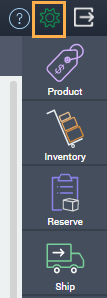
To get started, you will need to navigate to the settings page from anywhere in Paragon by clicking the settings button.
 
 
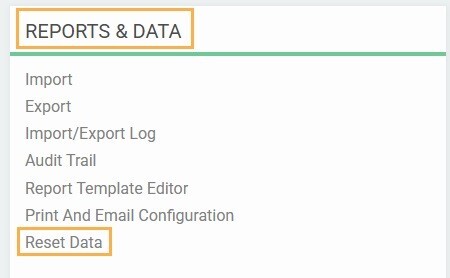
Once you are on the settings page you will be able to see the option to reset data from the reports & data card.


It is important to note that only superuser and techpartner have access to reset data. This is to avoid anyone from resetting the data by mistake.

 
Clicking this link will open a modal allowing you to erase your data. This functionality was designed to make it easy and seamless to go-live. Depending on your selections, it will delete all references and transactions in ParagonERP, including any test or sample data, but any configurations you've set up will be left as is, including:
  • New attributes that you've added in attribute setup
  • Any configuration done in screen setup or the print and email configuration
  • Any WIGO report layouts that you've created and saved
  • Any custom PDF templates that you've created
Last but not least, any connections to QuickBooks Online, Shopify or other integrations will remain active, and while the data that you've imported from these add-ons will be deleted in ParagonERP, your data in these other systems will be left alone.
 
You will see two options to clear your data: clear all data from my build and clear all transaction data from my build. All you need to do to erase your data is tick one of these checkboxes,  confirming that you want to continue, and then click the accept button.


Option1: Clear all data from my build


You can choose to click cancel or accept. Once you click accept, the process will begin. A progress bar will show you the % cleared as the program proceeds.


The progress bar will change to green when it is in the final stages.


You will be taken back to the ParagonERP login screen when the reset is completed.


Option2: Clear all transaction data from my build

If you choose the option to clear all transaction data from my build, the following modal will appear:


Click accept to continue, or cancel to abort.

Once you click accept, you will see a progress bar.


The progress bar will change to green when the process is in the final stages.


You will be brought back to the ParagonERP sign log in screen after your data has been fully cleared.


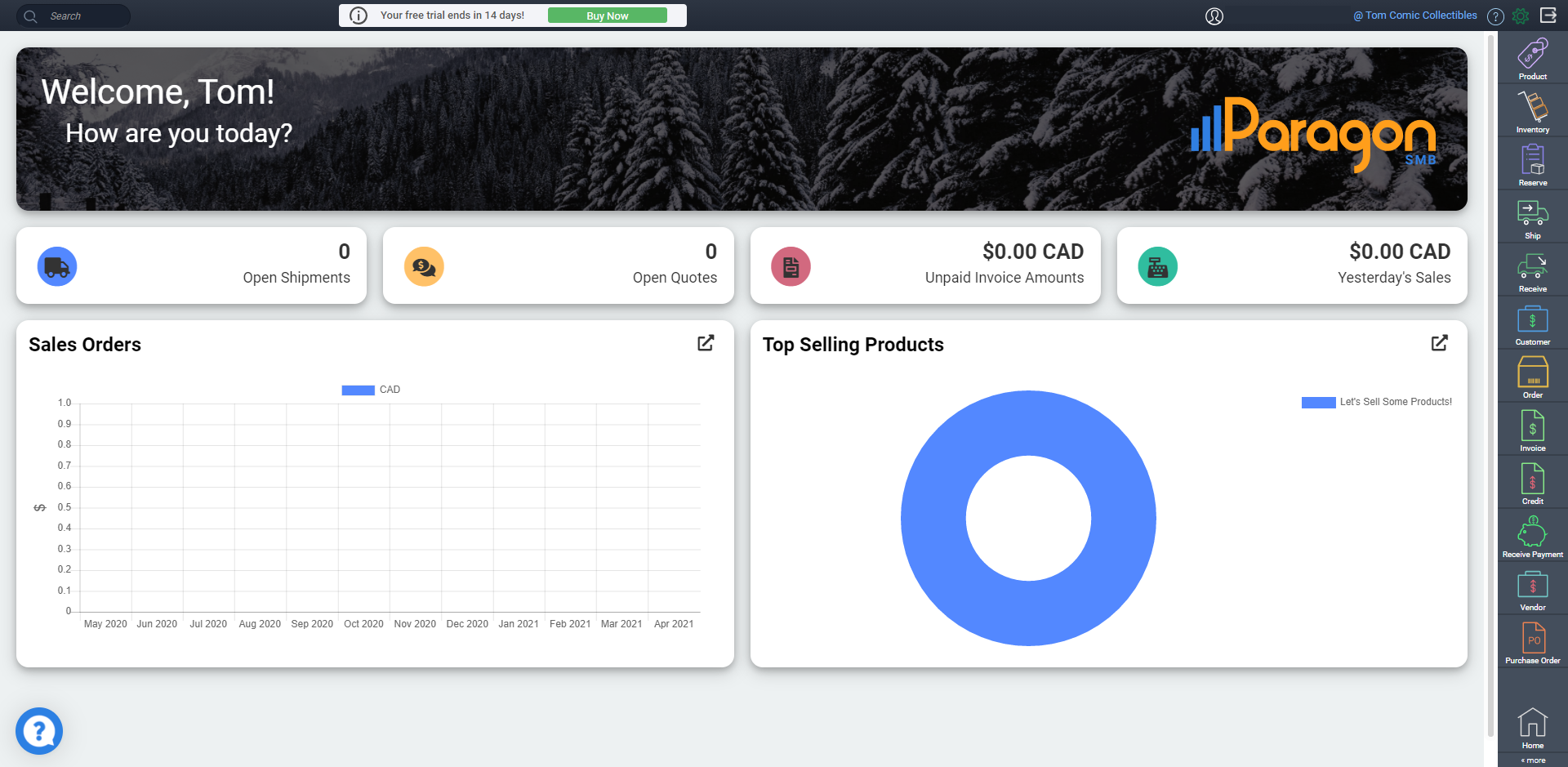
When you log back in, you will notice that your dashboard is now blank and you're ready to start creating your own data.


What's next?

Now that you're done exploring and are ready to use your fresh build, take a look at these handy articles to start creating your own data: