![paragon logo-1.png]](https://support.paragon-erp.com/hs-fs/hubfs/paragon%20logo-1.png?width=240&height=75&name=paragon%20logo-1.png)
Introduction
ParagonERP offers an option to generate UPCs automatically. This is particularly helpful if your merchandise uses product variants, for example style/color/size. A separate UPC may be required for each SKU (stock keeping unit), and this task can be daunting unless you can generate your UPCs automatically.
This article explains how to set up your system to use rule 296, and how it will work during product creation.
What is rule 296?
This rule works in tandem with rule 333. It handles the generation of all UPC's for eligible products. The UPC (universal product code) is a 12-digit number that is broken down as follows:
- (GS1 Company Prefix - MFG Product Code - Check Digit)
- GS1 Company Prefix: 6 digit code provided by GS1
- Product Code: 5 digit code that will be sequenced by 1 every time a UPC is generated
- Check Digit (Security digit that will be calculated on the fly by the rule.
The rule keeps track of the last UPC generated using attributes within myCompany.
Prerequisites
The GS1 prefix is an attribute in myCompany. Enter your 5-digit mfg company product in the GS1 prefix field provided in myCompany. Enter the last UPC product code used in the upc product code field provided.

If you do not see these attributes in myCompany, add them to your list of attributes. Then, you can add these attributes to myCompany.
Ask your system administrator or contact ParagonERP to set up the 296 rule in your system.
Step-by-step process
Step 1:
Once you have all of your product variants entered in ParagonERP, your system administrator will press the run now button on the line for UPC generation in settings, rules engine, rules.
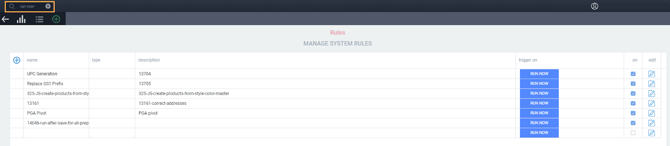
The run now command will show a screen asking you to confirm that you want to proceed.
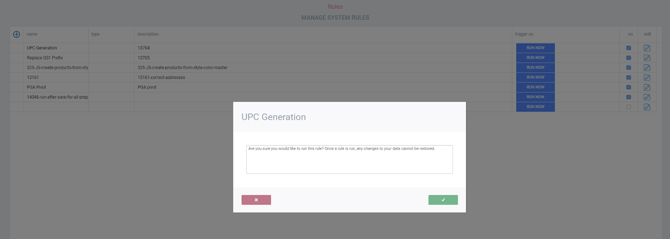
Click the accept button to continue.
Step 2:
The rule checks all products for the UPC product attribute, looking for active products that have this attribute checked off.
The rule checks if the product already has an existing UPC value. If no value exists, it will then assign a UPC to this product as follows:
- UPC is assigned using the following structure: GS1 Prefix - UPC Product Code - Check Digit. EX: 123456000018
- GS1 Prefix is taken from myCompany attribute “GS1 Prefix”
- Product Code is taken from myCompany attribute “UPC Product Code”
- Check digit is calculated using formula shown above
Every time a UPC is generated, the UPC product code attribute in myCompany is sequenced by 1. If the UPC product code reaches 99999, the rule will stop and provide you with a notification stating that there are no UPC codes available. The rule will send a warning message to the email address that is set up in myCompany when there are only 1000 UPCs left. This will give you time to purchase a new GS1 prefix number and restart the UPC product code number sequence.
Replace GS1 Prefix
When you are ready to move on to the new GS1 number, to go settings/rules engine/rules and click on run now for this rule:
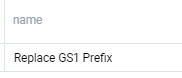
You can only run this rule if you have reached the maximum number of UPC codes for the existing GS1 prefix.
(When you start to use ParagonERP for the first time, if you have a test GS1 prefix with test UPC's, you will have to edit the screen in myCompany and set the UPC product code to 99999 in order to use the replace GS1 prefix option.)
When you click on run now for the replace GS1 prefix you will see this modal:
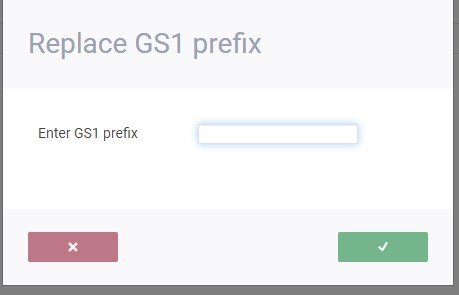
Enter the new GS1 number. This will reset the UPC # to 0, so that the next UPC # will be 1.
The GS1 prefix must be valid. If the GS1 prefix is too short, a yellow toaster will appear. If the GS1 prefix has already been used, you will see a red toaster.
The previous GS1 prefix will be transferred to another attribute, called Old GS1 prefix. All previous values of Old GS1 prefixes are saved in this attribute and used for verification when a new GS1 number is entered.
NOTE: If you already have UPC #’s from your previous ERP, after activating the new GS1 prefix, you can enter the last UPC # used in the UPC Product Code attribute in My Company so that your next UPC # will follow the sequence.
Related articles
The following article explains how rules are used in ParagonERP.
Next steps
Now that you have rule 296 available to you, whenever you add new product variants to your system, you can go back into settings/rules engine/rules and click on run now for the line UPC generation. The rule will provide UPCs for any active products that are missing a UPC and that have the UPC product attribute checked off.