![paragon logo-1.png]](https://support.paragon-erp.com/hs-fs/hubfs/paragon%20logo-1.png?width=240&height=75&name=paragon%20logo-1.png)
Introduction
ParagonERP allows you to attach files and images as URLs in any transaction or reference screen. You also have the ability to upload any file or image directly from your PC or network. This article will walk you through how to do this.
Prerequisites
For this to work, you must have access to images or files on your local PC or network. You can verify that through your local file explorers.
Step-by-step instructions
-
Step 1: Navigate to a transaction or reference module
For both reference and transaction screens, the attachment button is located at the bottom of the screen. In this example, we'll attach files on a sales order.
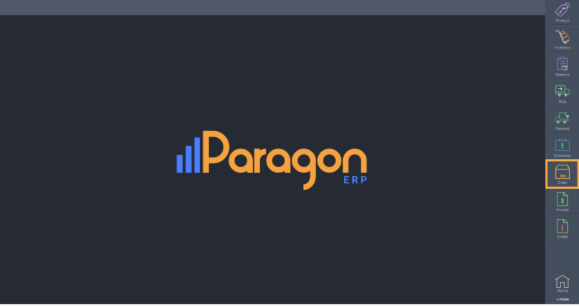
From any screen, click the order module.
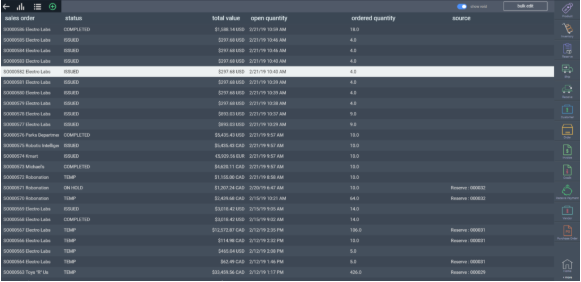
Then select any order.
-
Step 2: Edit the transaction
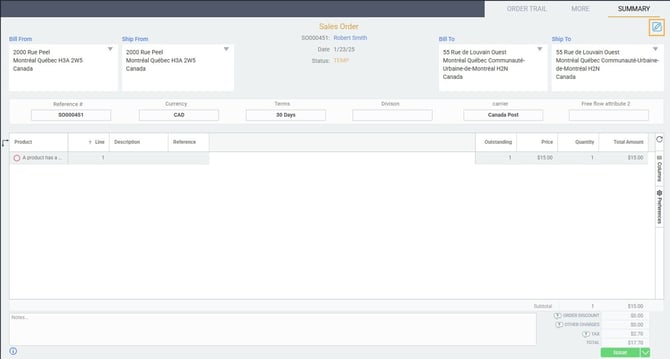
Once you have selected a specific transaction, click the edit button on the top right corner of the screen.
-
Step 3: Click the attachment button
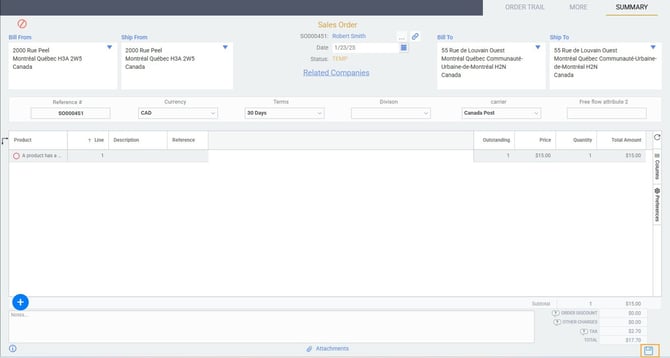
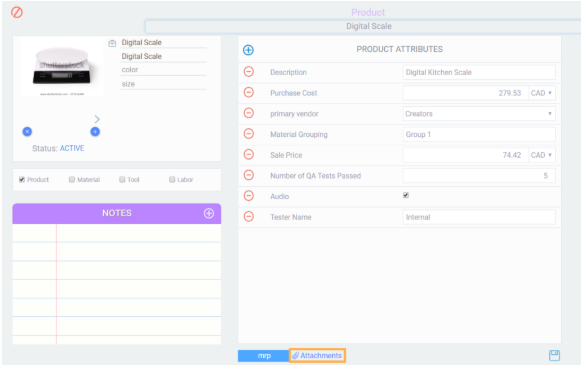
In edit mode, an attachment button appears at the bottom of the screen. Click this button to attach your files.

For references, such as products, the attachment button is also located at the bottom of the screen after you click the edit button.
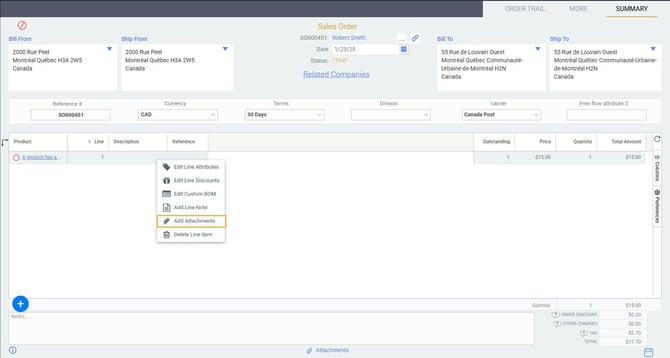
You can also add attachments on line items in a transaction. Simply right click the line item, and choose add attachments from the drop down list.
-
Step 4: Upload a file
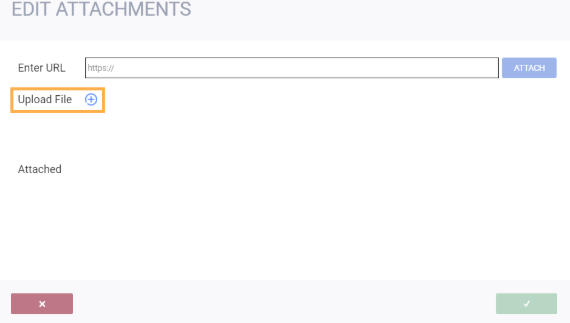
After clicking the attachments button, a modal will appear giving you the option to enter a URL or upload a file. click the upload file button.
Then click the select a file button.
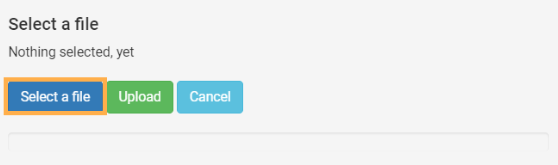
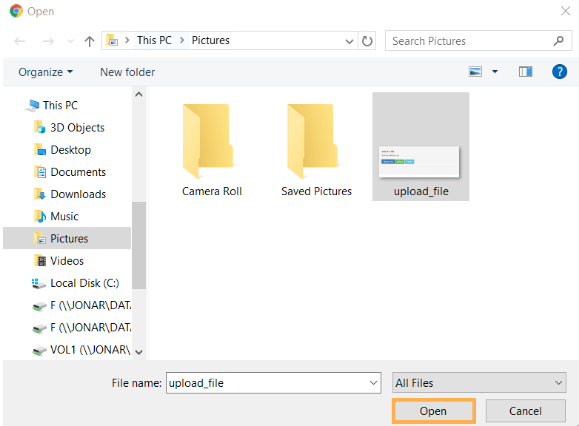
This will open an explorer window where you can see all your files. From here, select the file you would like to upload. This can be any types of files, including .pdf, .doc, .xls or .png, to name a few. Once selected, click the open button.
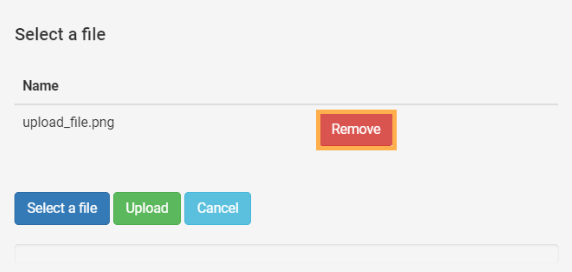
The name of the file you selected will appear in the modal. If it is not the file you wanted to upload, either click the remove button or click the select a file button to browse files again.
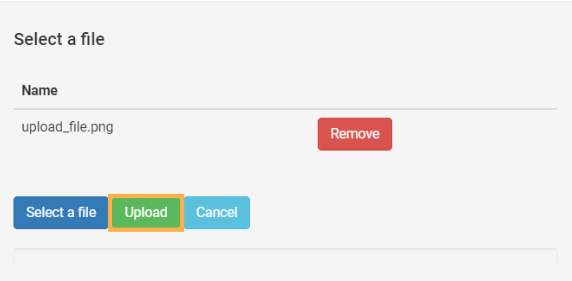
Once you are happy with the file selected, click the upload button.
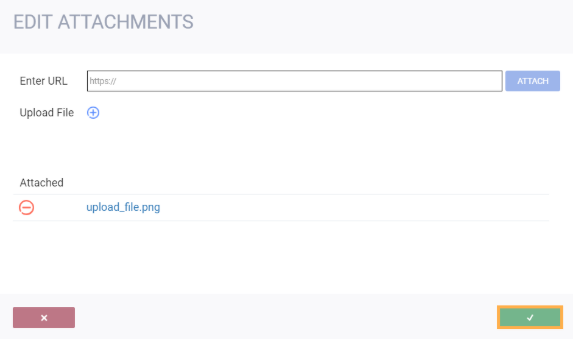
The file you uploaded will be under the attached section. Feel free to upload another file or enter another URL. There is no limit to how many attachments you can have in a transaction or reference. Once you have uploaded all of the files you wanted, click the accept button.
-
Step 5: Save your changes
Click the save button on the summary screen of the transaction or reference to save all changes you have made.