![paragon logo-1.png]](https://support.paragon-erp.com/hs-fs/hubfs/paragon%20logo-1.png?width=240&height=75&name=paragon%20logo-1.png)
Introduction
Process description:
Step-by-step instructions:
-
Step 1: Access the test mode manager
From the Paragon home page, click the settings button.

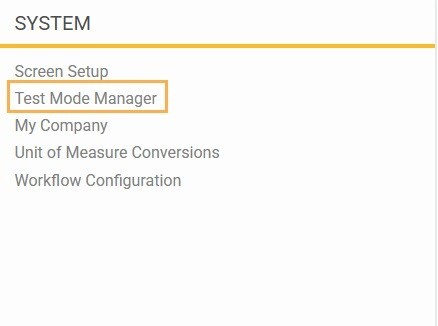
From the settings page, under the system card, select test mode manager.
-
Step 2: Reset Test Mode
Test Mode must be reset before you use it the first time. You will not be able to access Test Mode until it has been reset at least once.
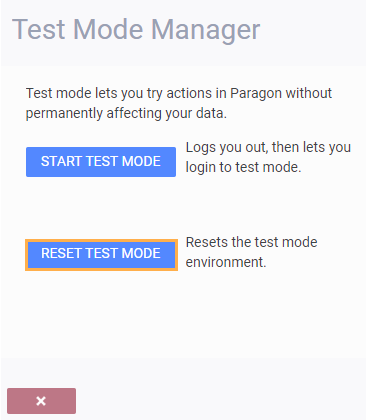
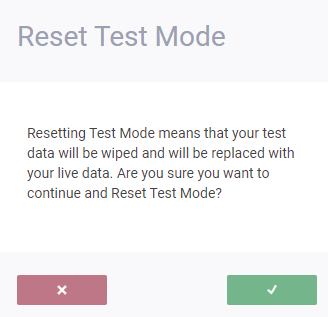
Click the accept button. When the reset is finished a success notification will be displayed on the top right of the screen.
-
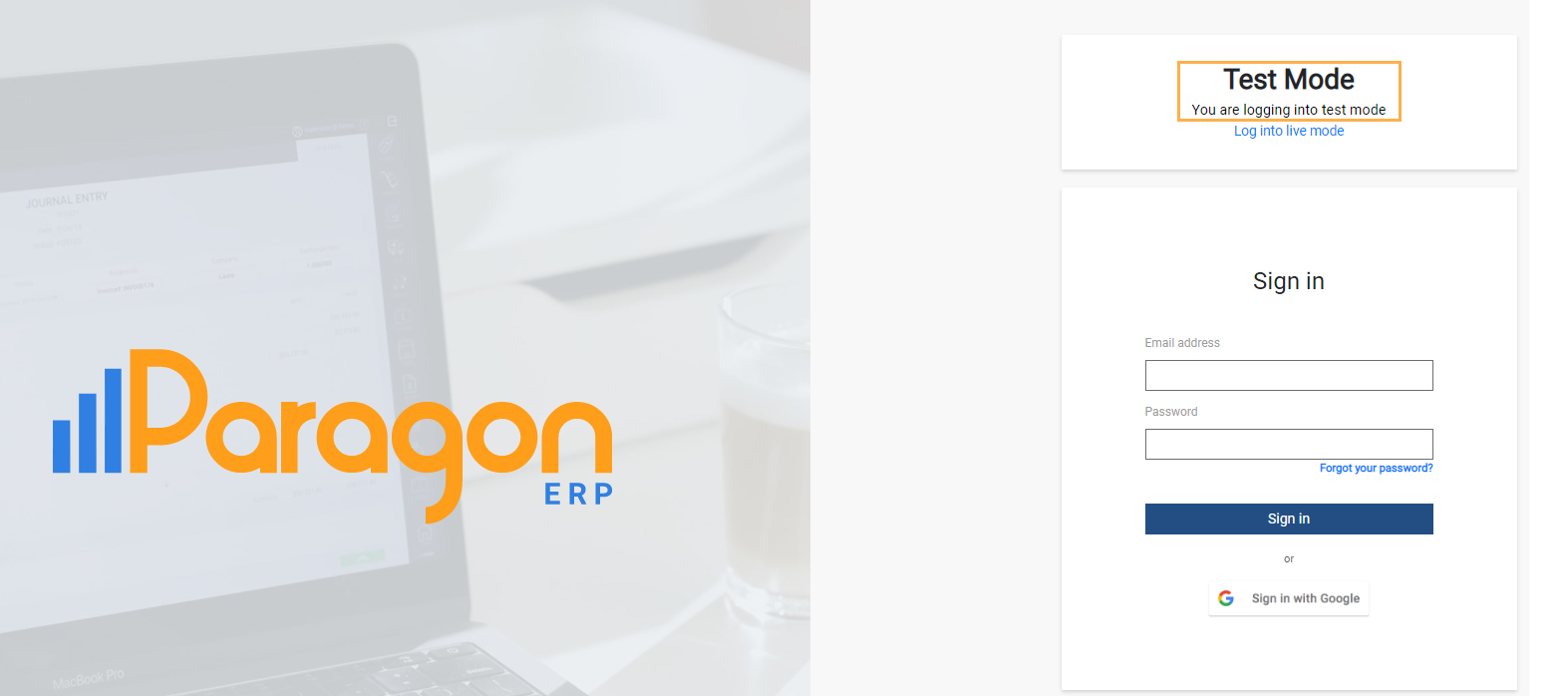
Step 3: Start test mode
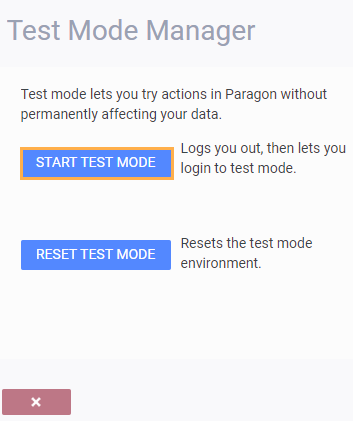
You can always tell when you're in test mode by the indicator on the Paragon header bar:

All your current test data will be lost if you reset test mode. It will be replaced by a copy of your current live data.
Resetting Test Mode might take a few minutes. You can always leave this screen and return to your regular work while you wait for the reset to complete. When the reset is finished, a success notification will be displayed on the top right of the screen.

What's next?
If this is your first time working with ParagonERP and you want some tips, check out our getting started document. You can use test mode to try out any processes that you require before adding data to your live system.