![paragon logo-1.png]](https://support.paragon-erp.com/hs-fs/hubfs/paragon%20logo-1.png?width=240&height=75&name=paragon%20logo-1.png)
Introduction
This article will explain how you can see what items are available to sell in what locations, In addition, you'll be able to see the available to sell calculation per location during data entry.
Process description
It's not uncommon for organizations to own different warehouses in separate geographical locations. Companies usually want to ship their items from their closest warehouse to reduce transport and customs costs. These companies would want their ERP system to show their inventory by warehouse location when they create transactions. ParagonERP comes equipped with this functionality.
Check your inventory calculation setting in my company
In the my company/summary screen, take a look at the available to sell setting. In our example, the ATS or available to sell calculation is stock + inbound goods - allocated goods.

This is how the inventory stock is calculated per location in any transaction add product modal. This setting can be changed to better suit your needs in my company.
View item ATS on the transaction
From the home screen, or the side bar, open the transaction module. For the purposes of this article, we are using order. Note that this function is available on all transaction modules.
Click the blue add item button to bring up the modal.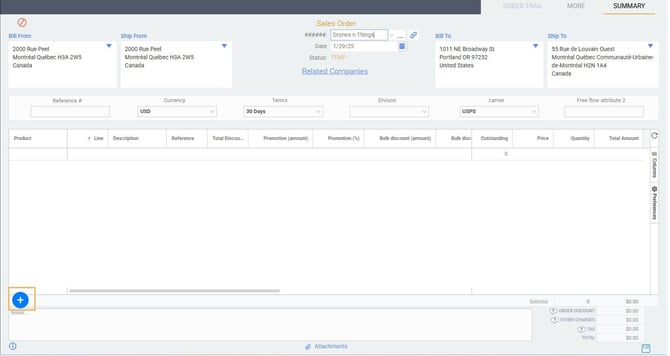
In this modal, you'll be able to see the ATS calculation specific per location. For the product robochopper, we've chosen main warehouse. Here you can see the available to sell in this warehouse based on the calculation from the my company module.

Next, we searched for the same item in warehouse 2.

What's next?
You can decide how the system calculates your available to sell at any time by changing the ATS calculation setting in my company. The options are as follows:
- Stock + Inbound Goods - Allocated Goods
- Stock - Allocated Goods (incoming purchase order and work orders are ignored)
- Stock (straight inventory units - incoming goods and open orders are ignored)