![paragon logo-1.png]](https://support.paragon-erp.com/hs-fs/hubfs/paragon%20logo-1.png?width=240&height=75&name=paragon%20logo-1.png)
Introduction
This document explains how to add dates as attributes in ParagonERP.
Process description:
Also known as a date picker, this attribute type will allow you to select a date from a calendar tool.
In this example, we will be setting up complete date as the date attribute, which can then be used in sales orders, work orders, etc.
There is no limitation on the number of attributes you can create in ParagonERP.
Step-by-step instructions:
-
Step 1 - Open attribute setup
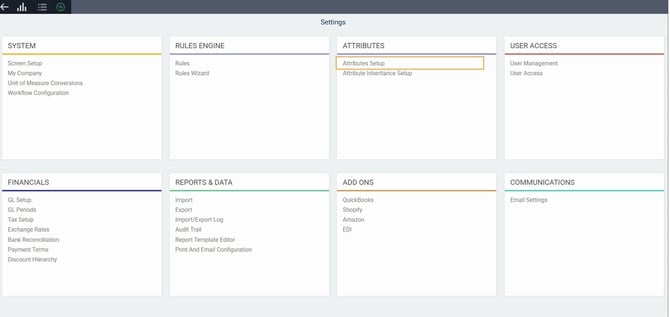
From any screen, click the settings button. This will bring you to the settings page.

Under the attributes card, click on attribute setup to access the attributes setup module.
-
Step 2 - Create a new attribute
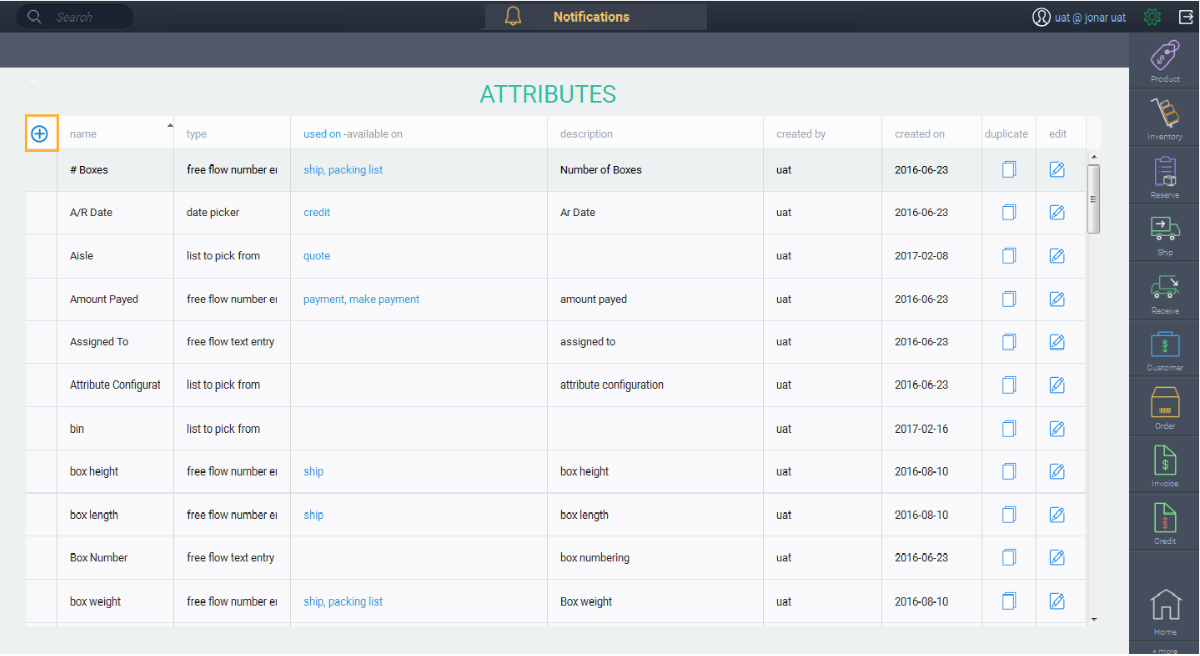
To add an attribute, click the create new attribute button.
-
Step 3 - Name your attribute
Enter the attribute name. Then, click the next button.
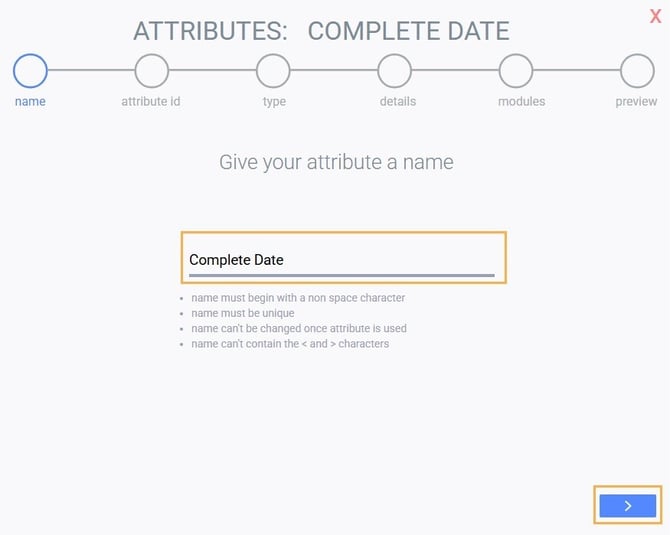
When you click the next button, the conditions listed on the above screen will be validated.
Once you've completed setting up your attribute, the name of the attribute cannot be changed.
Step 4 - Choose the attribute type
Choose the type of attribute you want. In this case select date picker and click the next button.
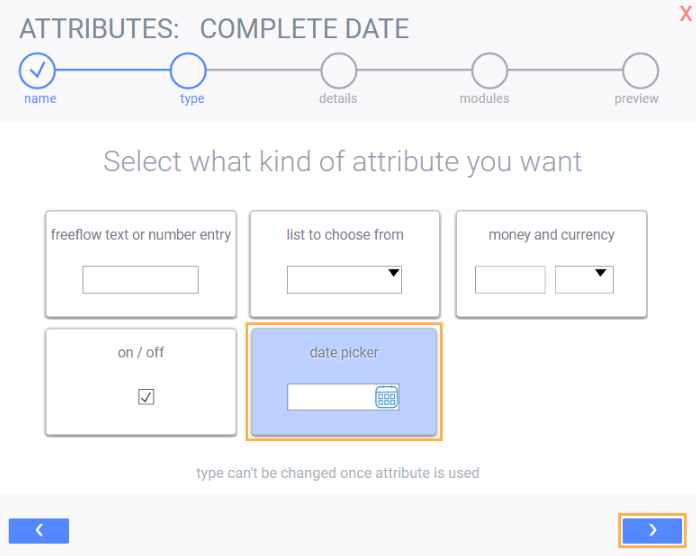
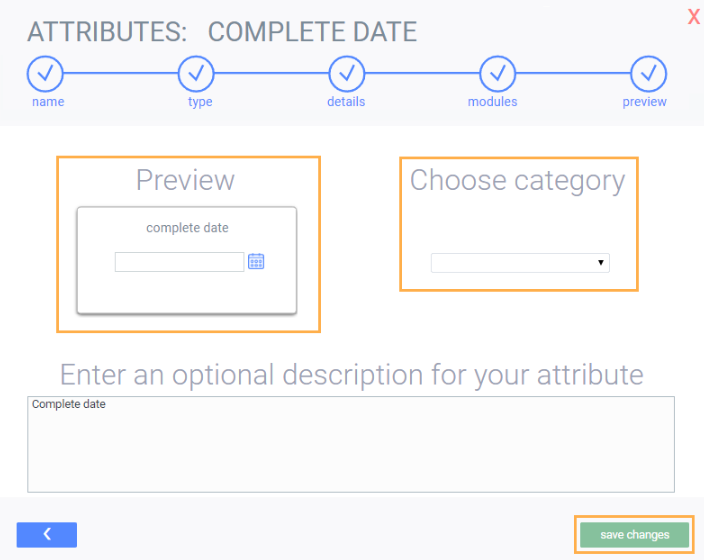
Once you click next, the system will show a preview of the attribute, an optional description field, and a list of categories to choose from. Note that the date format will be determined by your web browser's date format. Once you've made the final changes, click the save changes button. Your attribute will now be ready to use.
What's next?
Once you've created all your date picker attributes, the next step will be to associate them to reference modules or transaction modules.