![paragon logo-1.png]](https://support.paragon-erp.com/hs-fs/hubfs/paragon%20logo-1.png?width=240&height=75&name=paragon%20logo-1.png)
Introduction
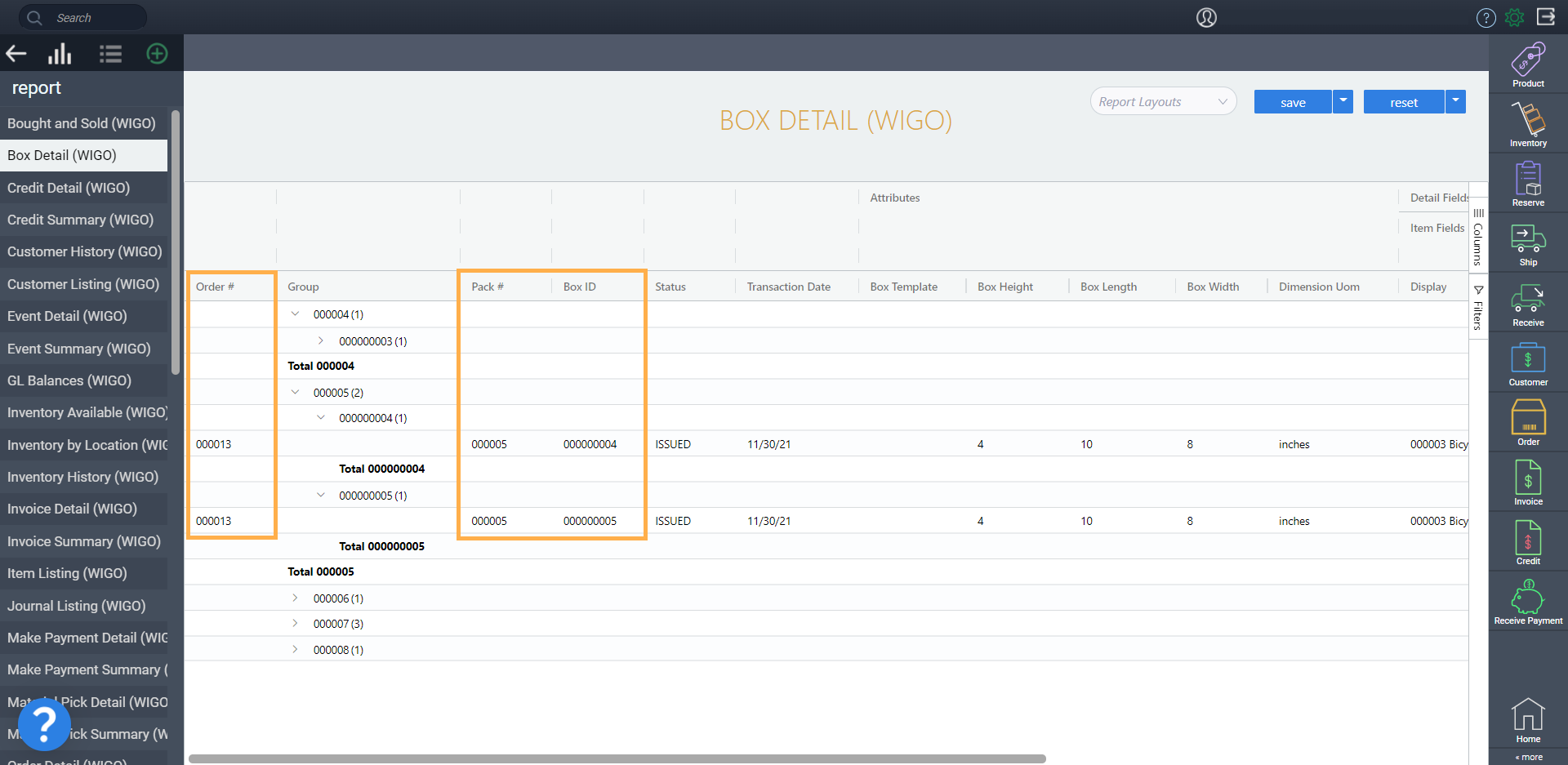
This article will review the default layout and data of the Box Detail (WIGO) report along with guidance on related transactions and customization.
Process description:
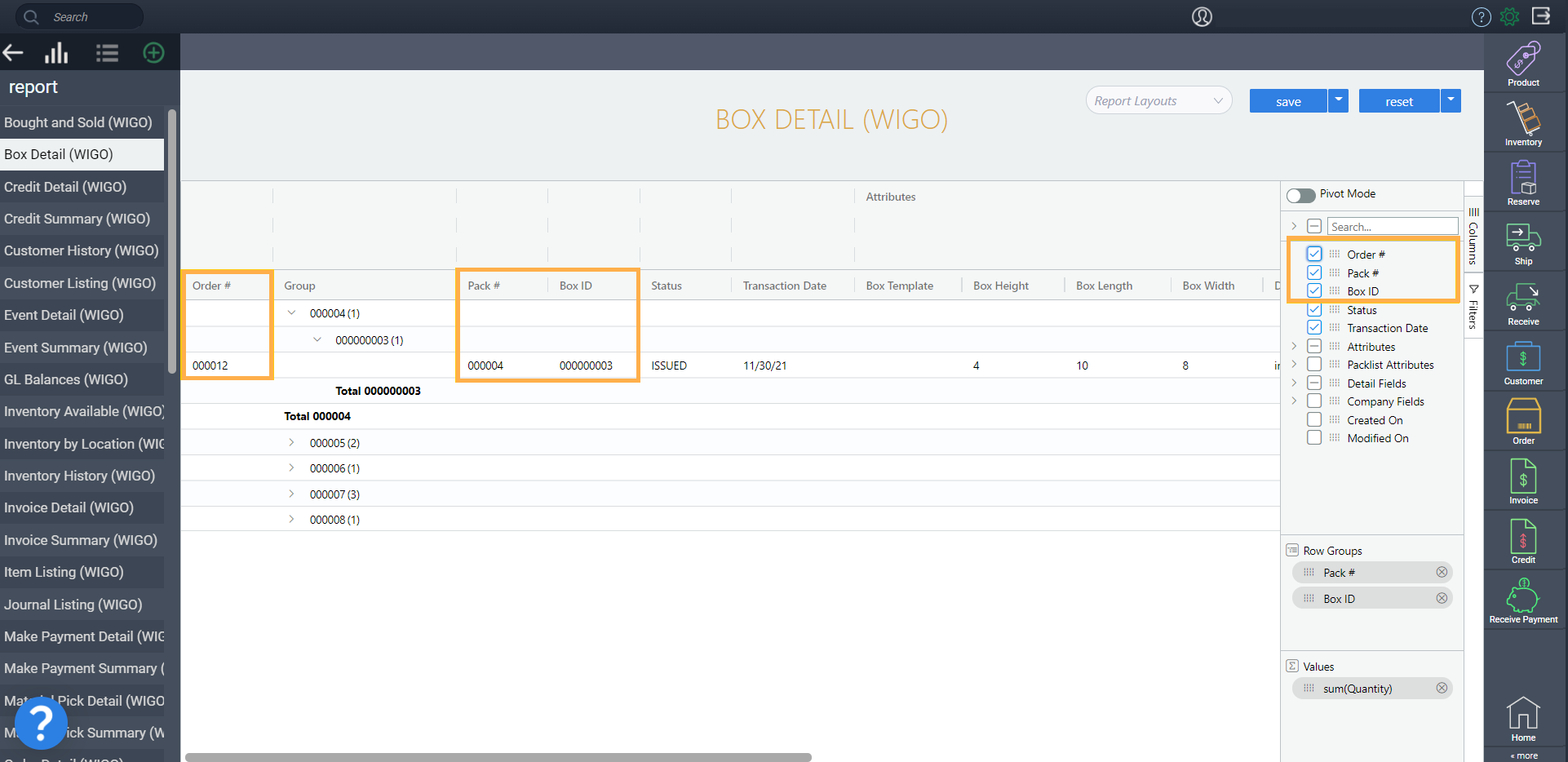
When it comes to tracking your inventory, it can be very time-consuming to break down everything that has been packed and shipped, especially if you need to locate specific products quickly. The box detail (WIGO) report, displays all boxes that have been packed along with their contents, grouped by their related pack number. The flexibility of WIGO reporting allows you to quickly group by the items, then filter out completed packs. You will be able to tell which items haven't been shipped out.
This information will be very useful to warehouse and logistics teams who want to have easy access to box details without having to manually go through each transaction to find out what has been packed and sent.
Step-by-step instructions:
-
Step 1: Access the Box Detail report
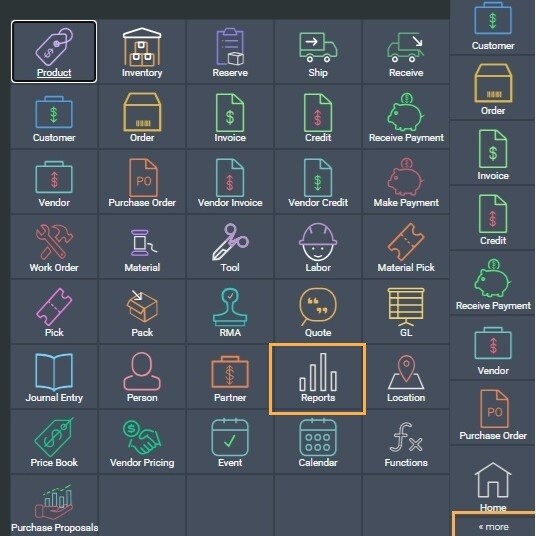
You can find the Box Detail (WIGO) report by clicking the more button and selecting reports.
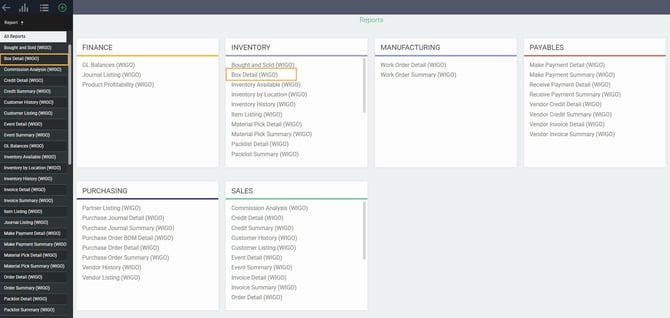
From there you will be able to click Box Detail (WIGO) from either the inventory card or simply from the sidebar.
-
Step 2: View or modify layout and data
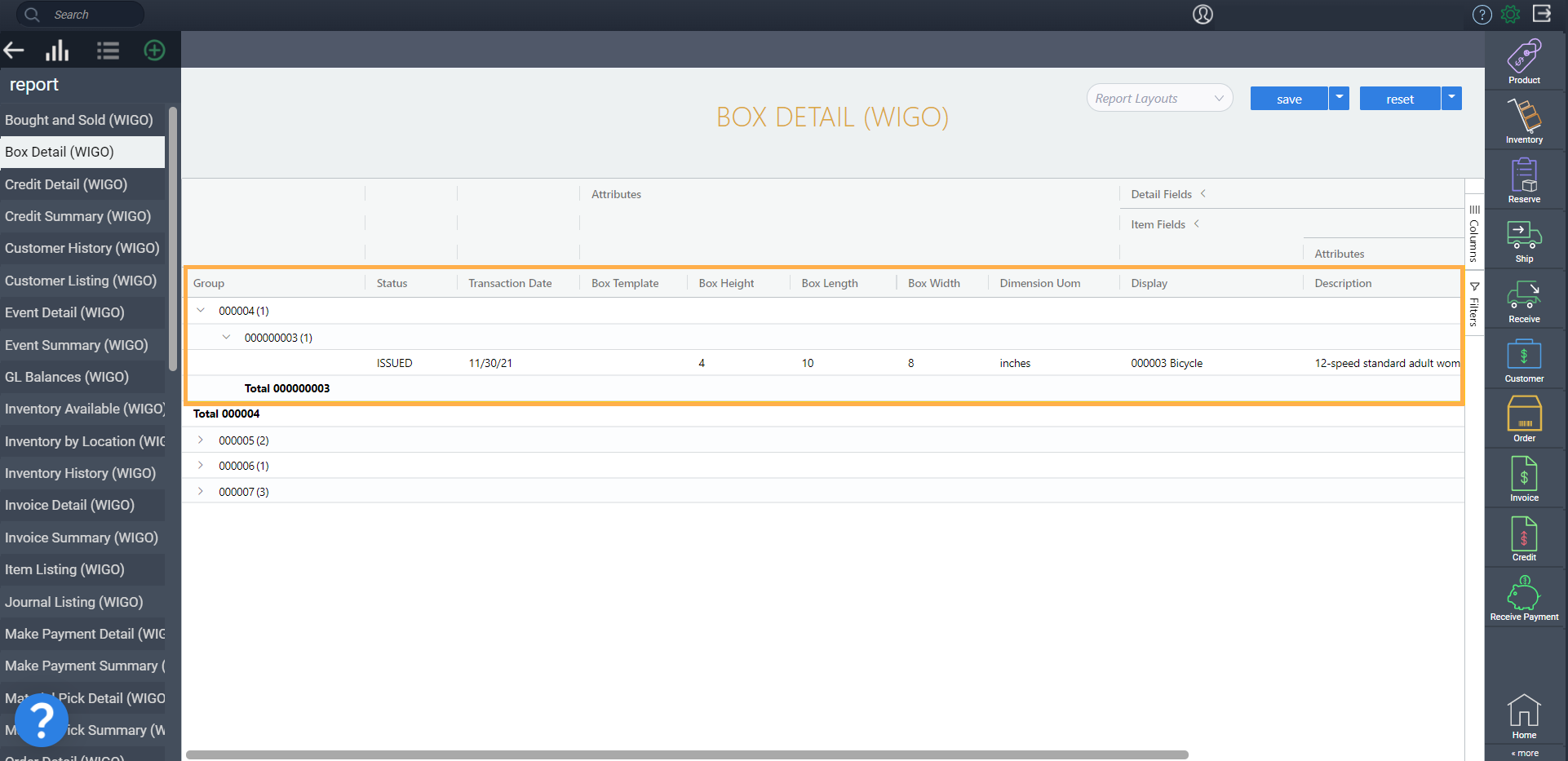
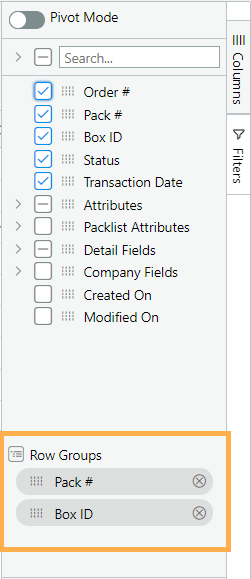
If you ever want to tweak the grouping filter you can always switch or swap filters by clicking the columns button on the toolbar and removing or dragging attributes to the group section.
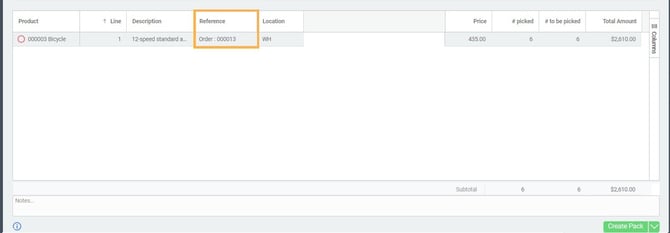
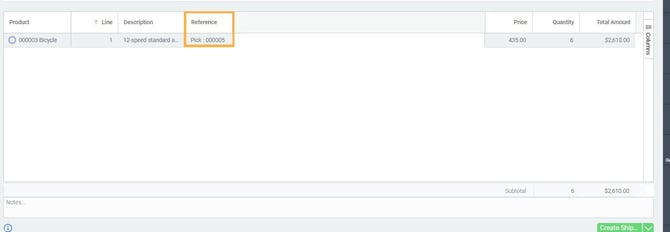
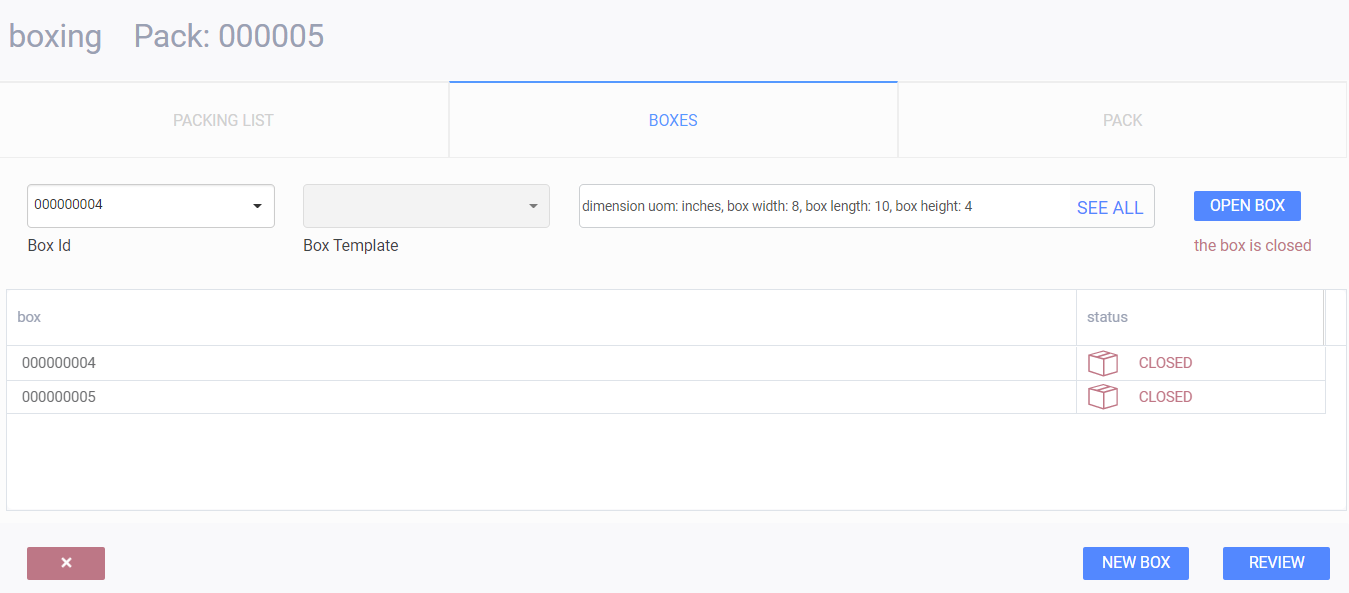
- Order > Reserve > Pick > Pack
- Order > Pick > Pack
- Order > Pack
Related articles