![paragon logo-1.png]](https://support.paragon-erp.com/hs-fs/hubfs/paragon%20logo-1.png?width=240&height=75&name=paragon%20logo-1.png)
Introduction
This document explains how to enter money and currency attributes in Paragon.
There is no limitation on the number of attributes you can create in ParagonERP.
Process description:
A money and currency attribute is any attribute that needs to be formatted with decimals and a currency symbol. For example; sales price, purchase cost and credit limit are money and currency attributes.
Step-by-step instructions:
-
Step 1: Open attribute setup
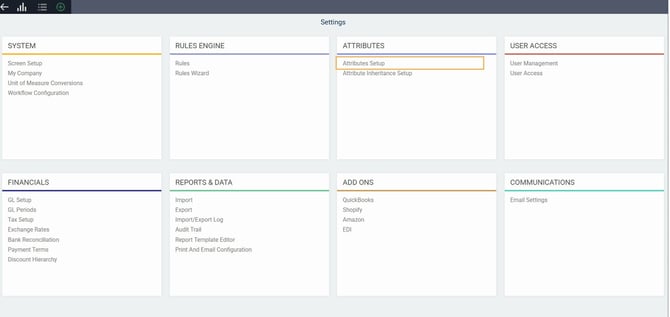
From any screen, click the settings button. This will bring you to the settings page.

Under the attributes card, click on attribute setup to access the attributes setup module.
-
Step 2: Create a new attribute
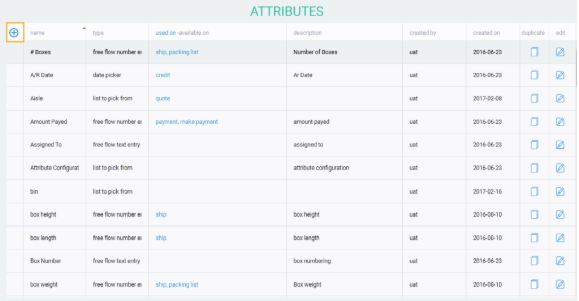
To add an attribute, click the create new attribute button.
-
Step 3: Name your attribute
Enter the attribute name. Then, click the next button.
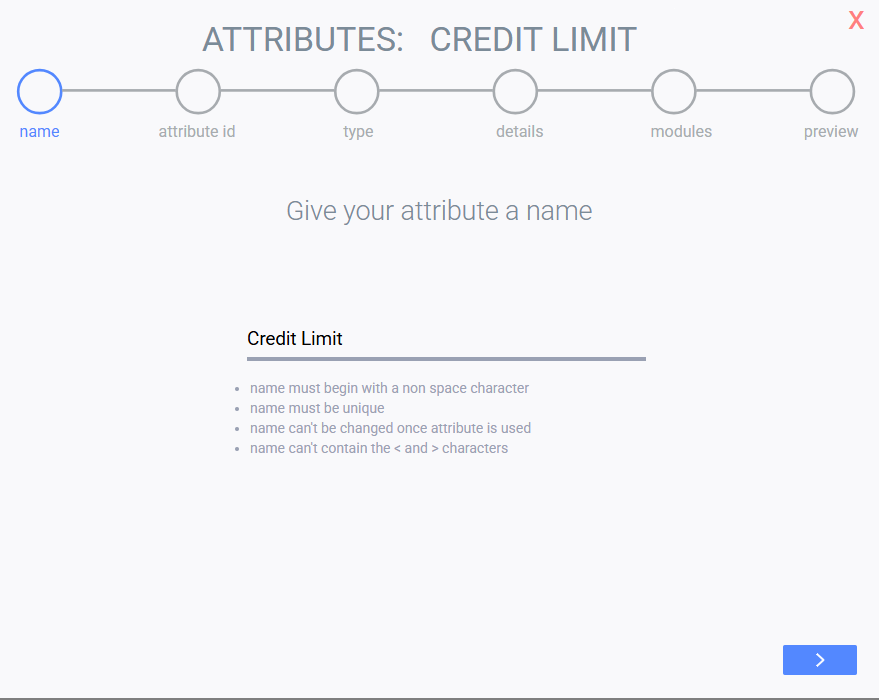
When you click the next button, the conditions conditions listed in the screen above will be validated:
- The name cannot begin with a space
- The attribute name must be unique
- Name cannot be changed once attribute is used
- Name can't contain the < and > characters
-
Step 4: Choose the attribute type
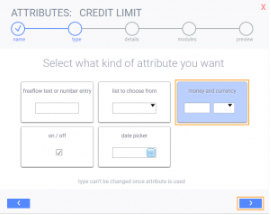
Choose the type of attribute you want.
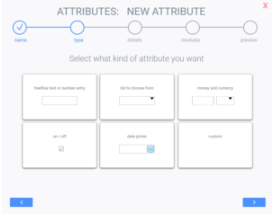
In this case we want to select money and currency. Then click the next button.
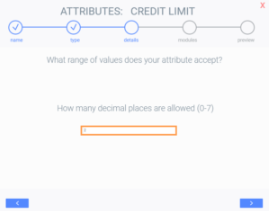
Choose the amount of decimal places you want to be displayed for the attribute value and click the next button.
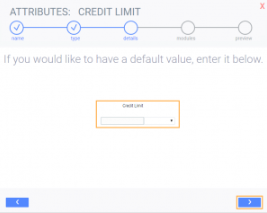
The system will now allow you to choose a default currency from the drop-down menu. If you do not want a default value to show up, leave the field blank. Once you're happy with this, click the next button.
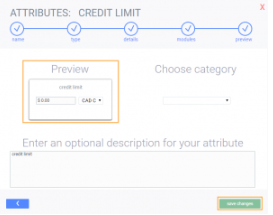
The system will now show a preview of what your money/currency attribute will look like. Here, you can enter an optional description for your attribute, as well as choose a category for your attribute. Once your changes are made, click the save changes button.
What's Next?
Once you've created all your attributes, the next step will be to associate them to reference modules or transaction modules.
Here is an example of the attribute on a transaction after it has been added to a module via the screen setup:
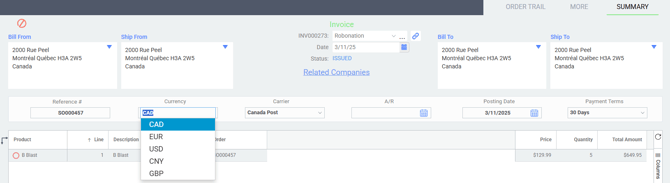
Now that you have added your money and currency attributes to the various reference and transaction modules that require them, you can go ahead and create new references and transactions using these important attributes.