![paragon logo-1.png]](https://support.paragon-erp.com/hs-fs/hubfs/paragon%20logo-1.png?width=240&height=75&name=paragon%20logo-1.png)
Introduction
There is no limitation on the number of attributes you can create in ParagonERP.
Process description:
This type of attribute has a pre-defined list of choices. You choose an option from a drop-down list to fill in the attribute with a value. For example, you can name an attribute season and create a dropdown list including: Spring, Summer, Fall and Winter.
Step-by-step instructions:
-
Step 1: Open attribute setup
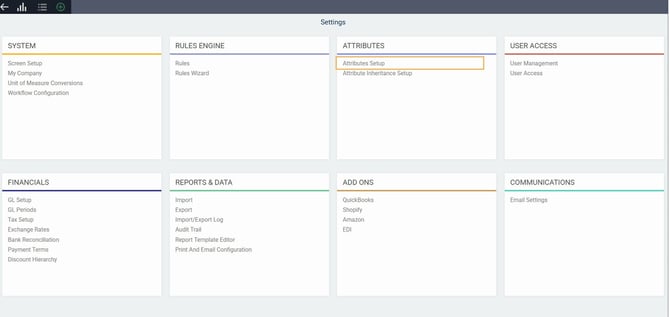
From any screen, click the settings button. This will bring you to the settings page.

Under the attributes card, click on attribute setup to access the attributes setup module.
-
Step 2: Create a new attribute
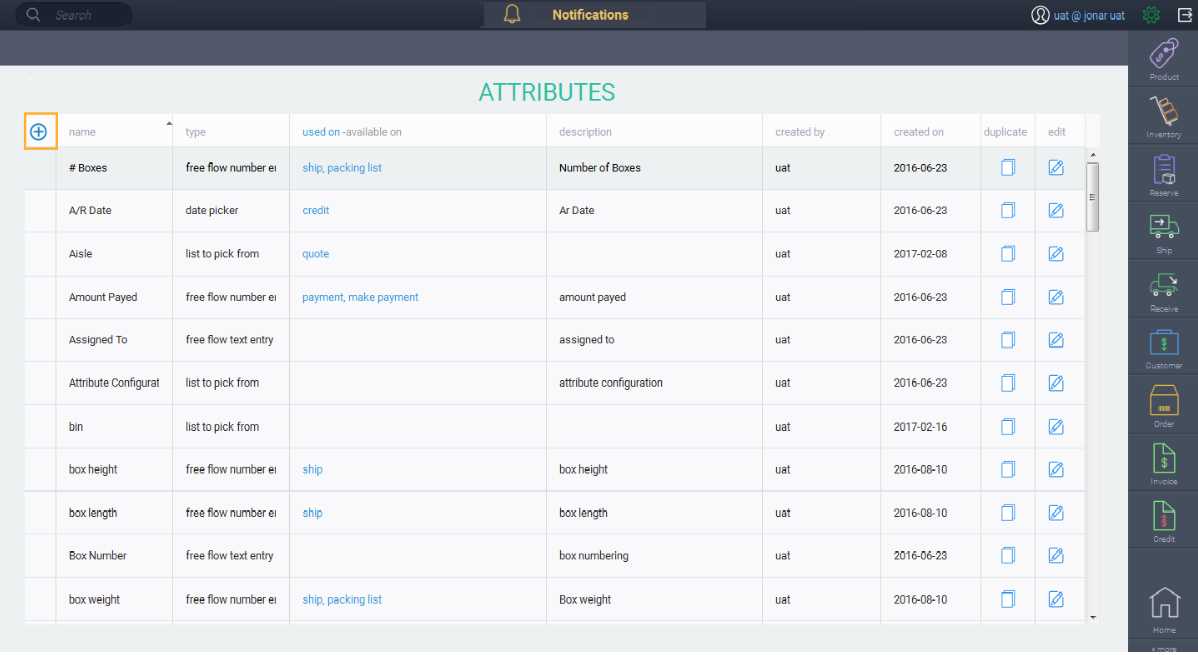
To add an attribute, click the create new attribute button.
-
Step 3: Name your attribute
Enter the attribute name. In this example, we have chosen the name carrier. Once you enter a name, click the next button.
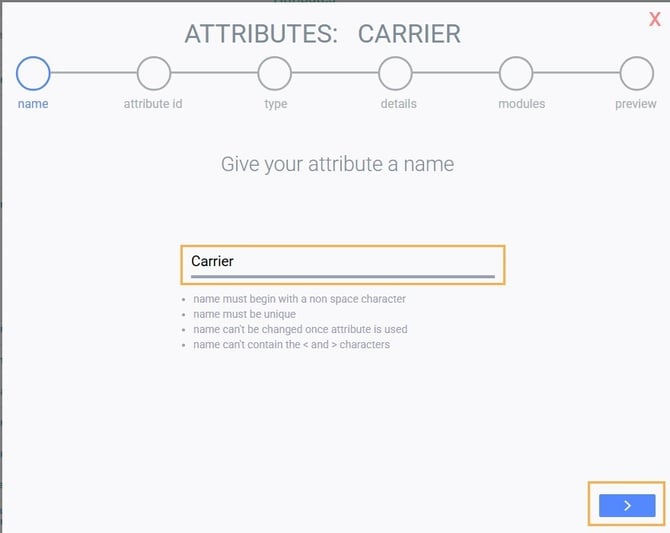
When you click the next button, the conditions listed in the above screen will be validated.
Once you've completed setting up your attribute, the name of the attribute cannot be changed.
-
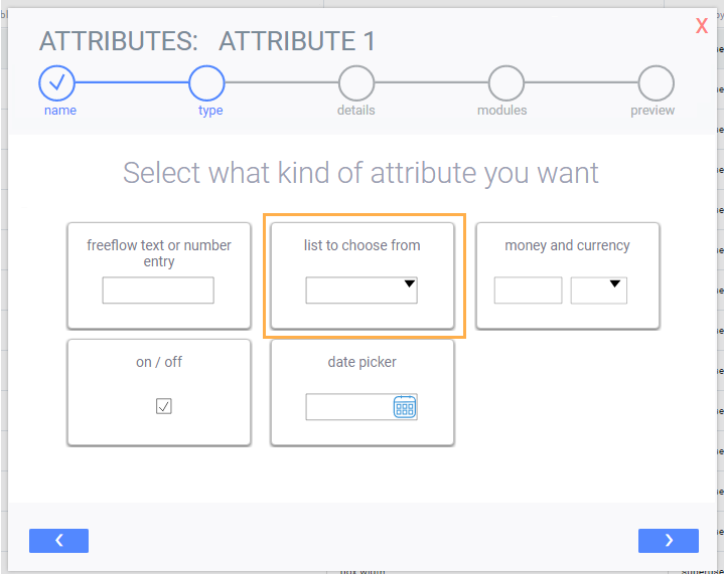
Step 4: Choose an attribute type
Choose the type of attribute you want.
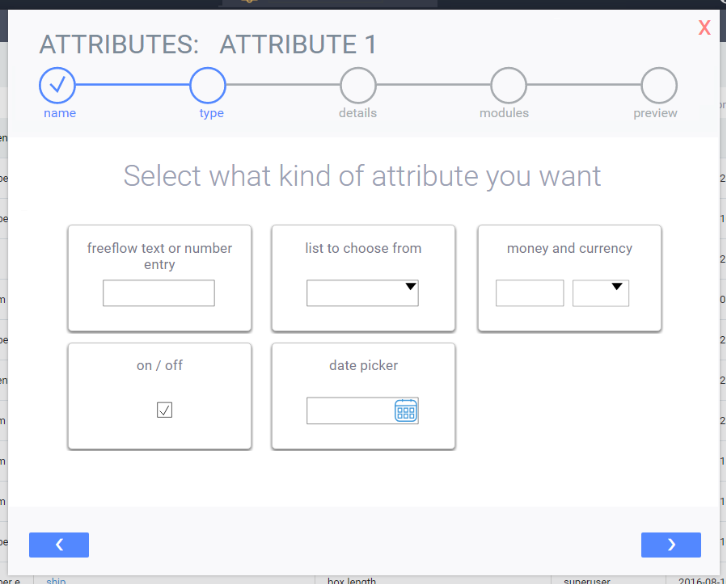
In this case we want to select list to choose from. Once you've selected an attribute type, click the next button.
-
Step 5: Enter list to choose from
You will be brought to a screen for you to enter the list of drop down items.
To add an attribute value, click the add new attribute value button and enter the name under the value header.
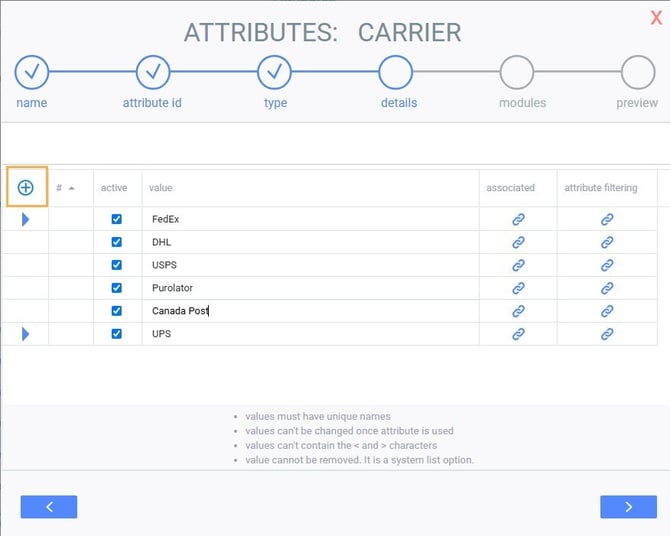
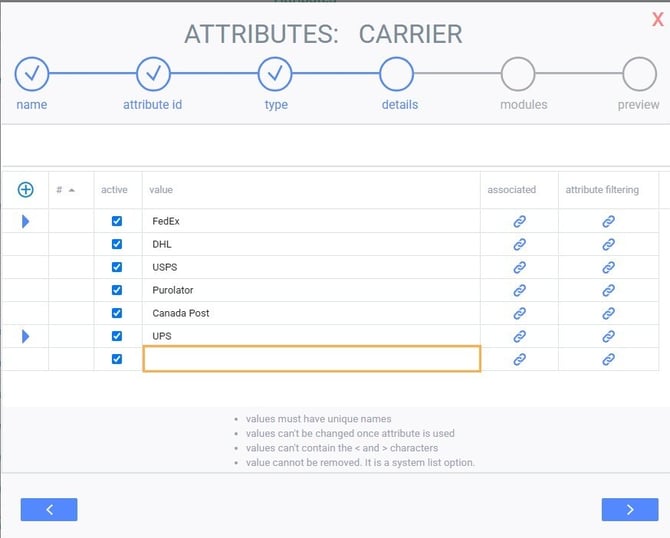
When you click the add new button, a blank line will appear. Enter in the details of the attribute.
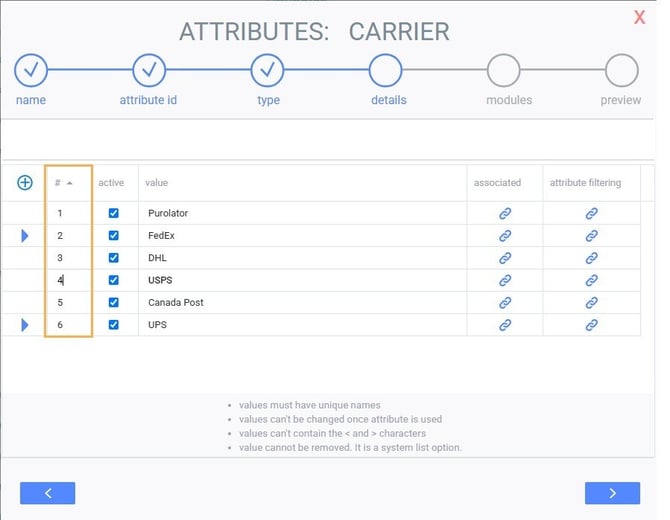
If you have more than one attribute value, you can decide the order in which they appear. Do this by entering numbers into the first column.
Once you've added all necessary values, click the next button.
-
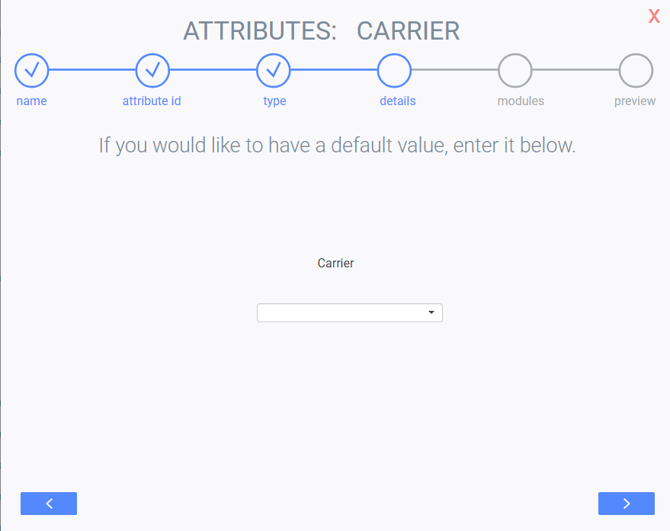
Step 6: Enter a default value (optional)
The system will allow you to choose a default value or you can leave the field blank. Once you're happy with your selection, click the next button.
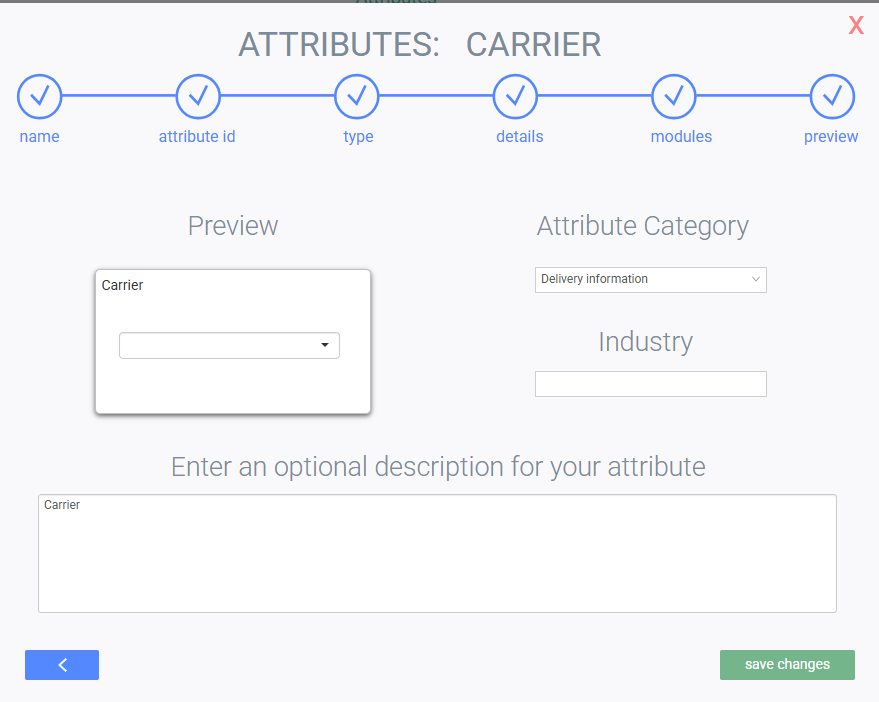
You can now choose a category for your attribute here and add an optional description. There is also a preview of what the attribute will look like. When you're happy with the attribute, click the save changes button.
What's next?
Once you've created all your attributes, the next step will be to associate them to reference modules or transaction modules.