![paragon logo-1.png]](https://support.paragon-erp.com/hs-fs/hubfs/paragon%20logo-1.png?width=240&height=75&name=paragon%20logo-1.png)
Introduction
Scenario #1: Create an order manually
Step-by-step instructions:
-
Step 1: Open the order module
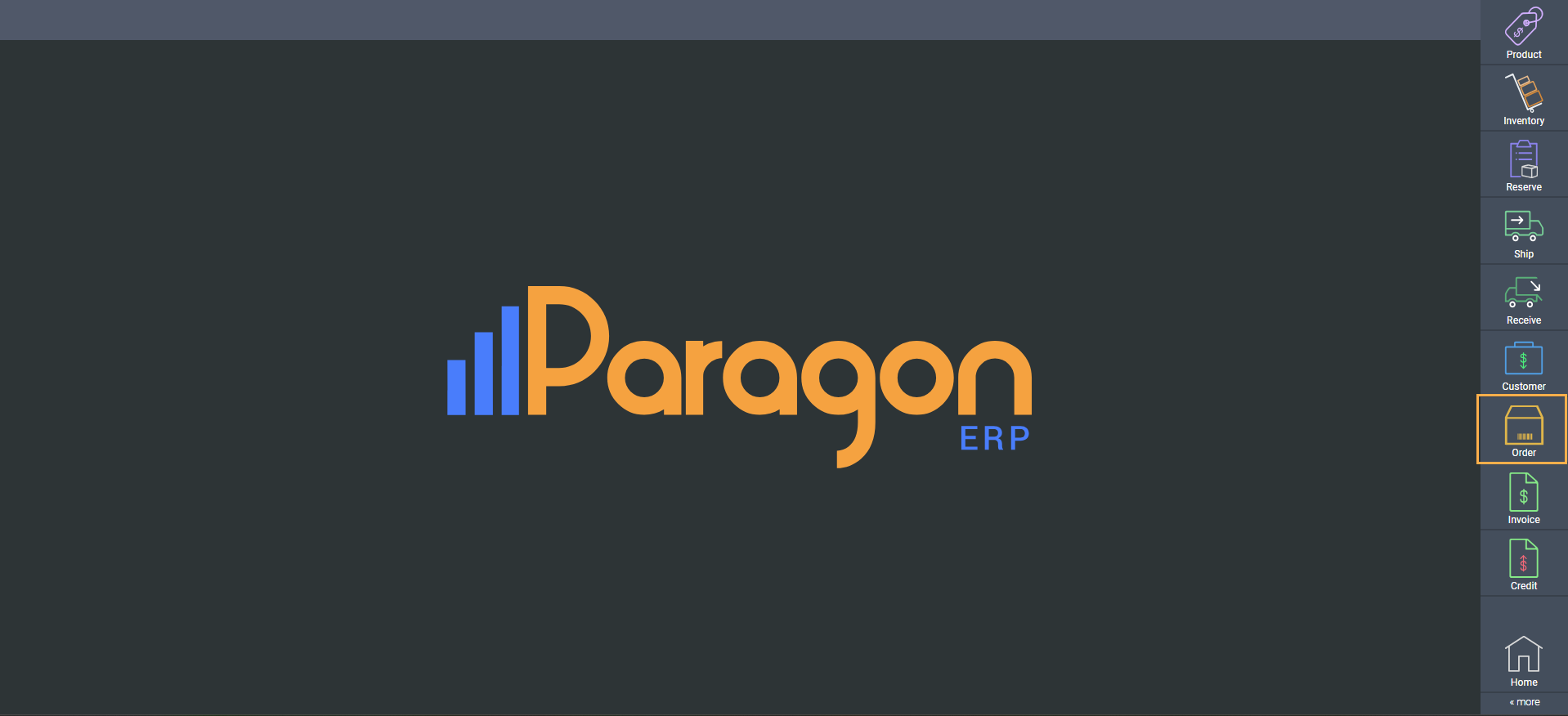
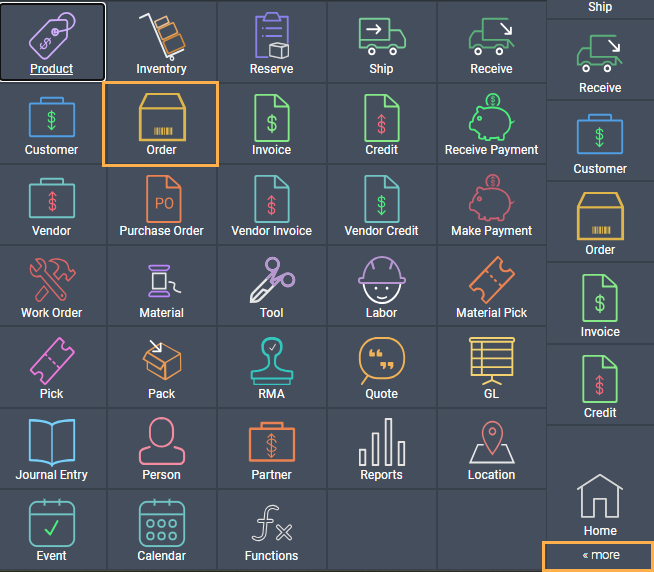
You can open the order module in two ways; by clicking on the order module in the right-hand navigation bar or through the more menu.
-
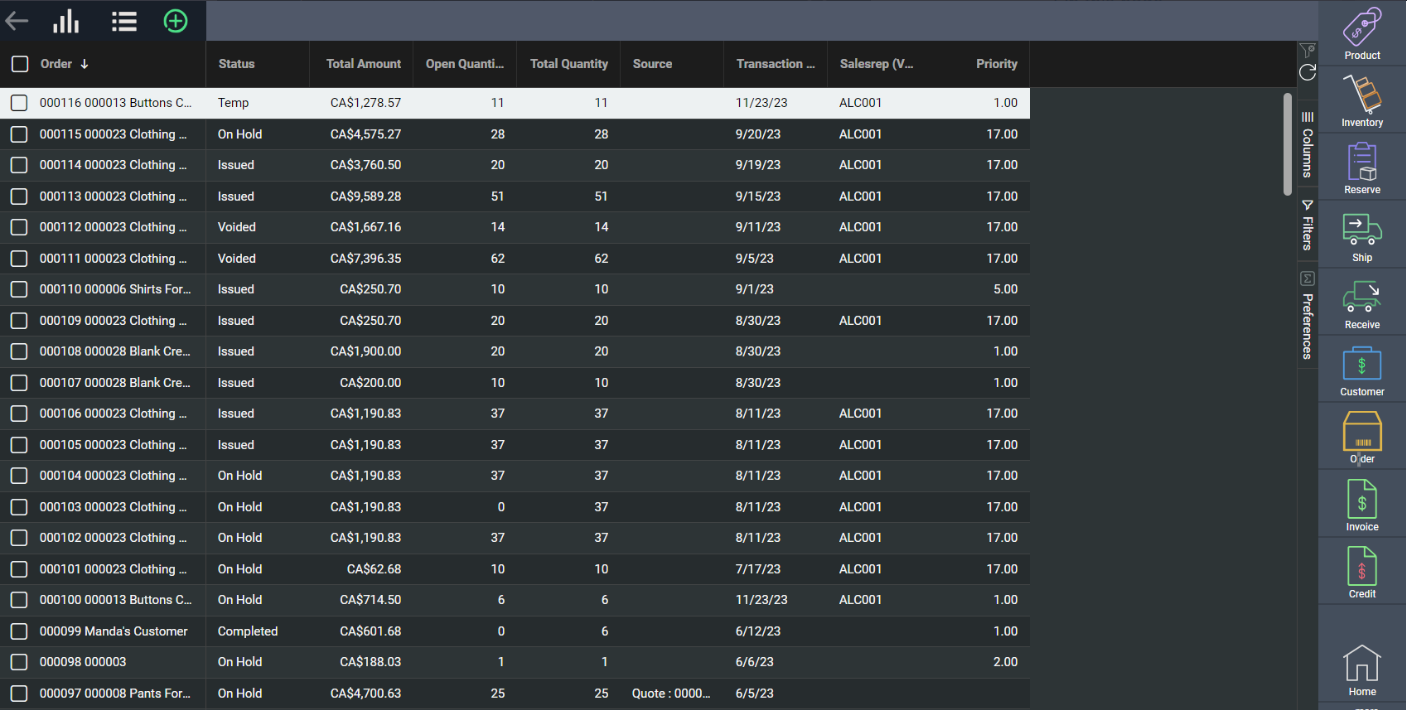
Step 2: Click on add new order.

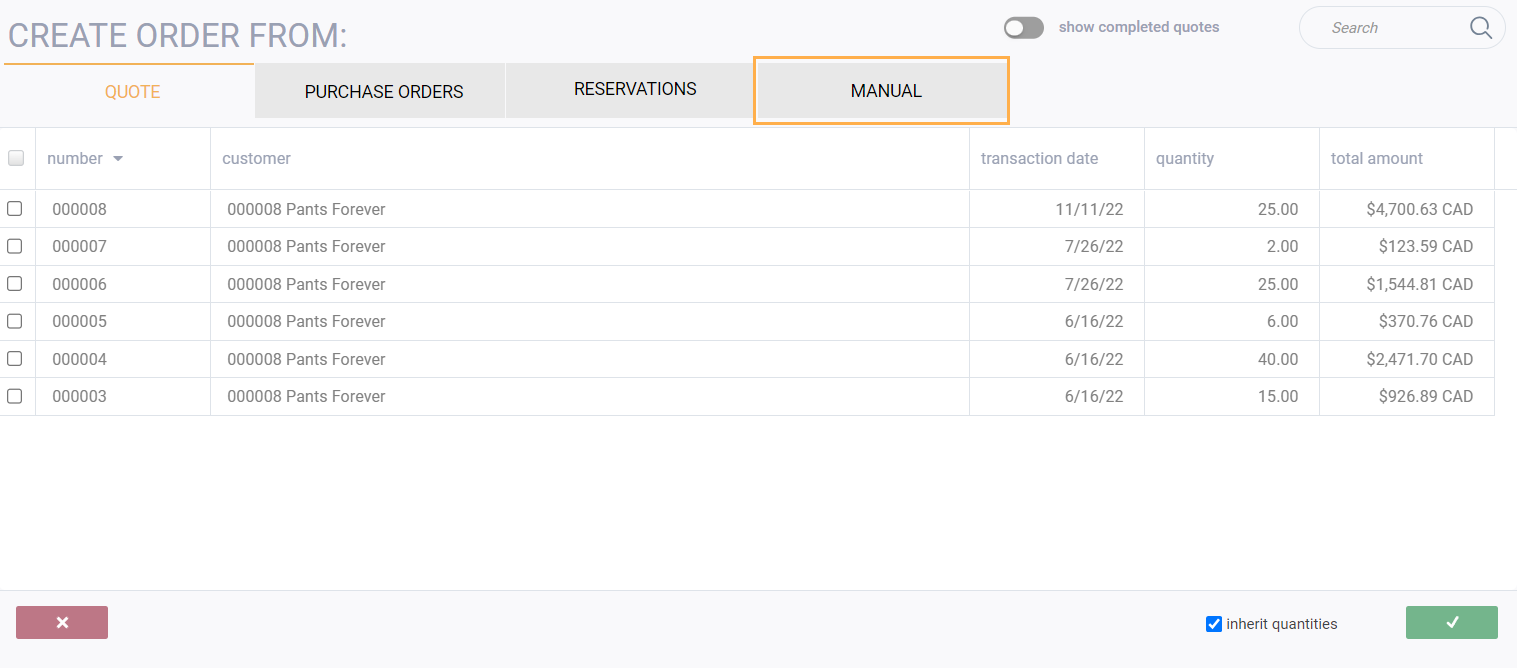
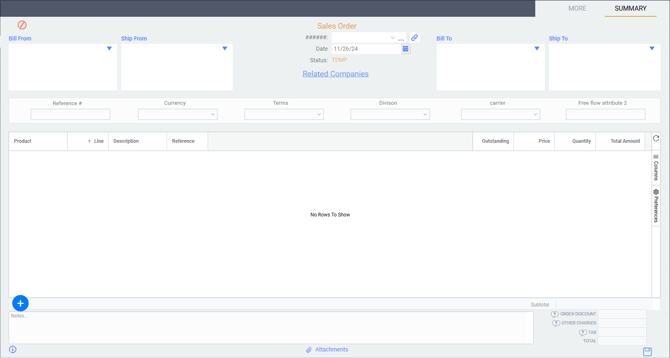
-
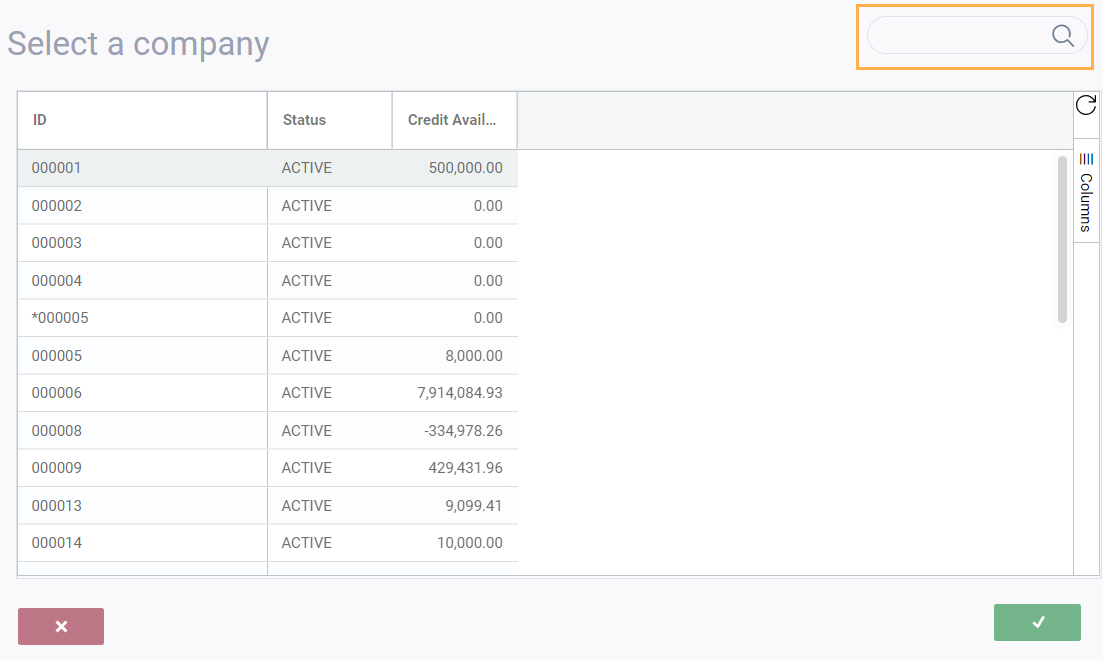
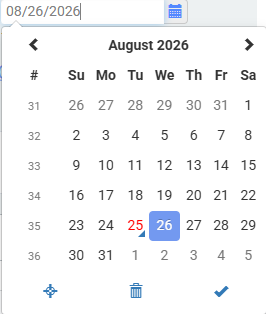
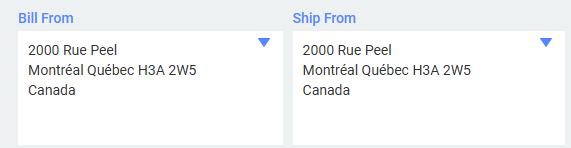
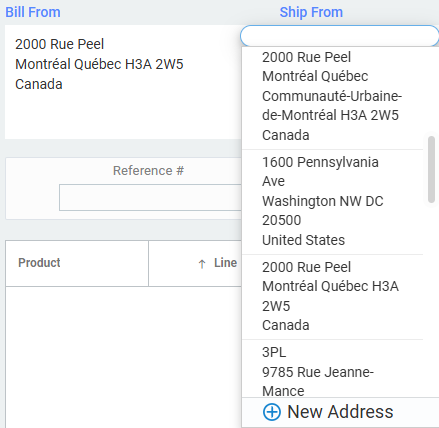
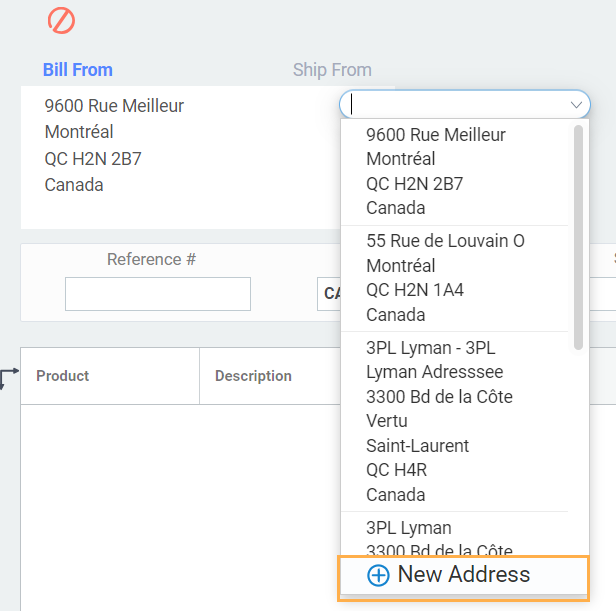
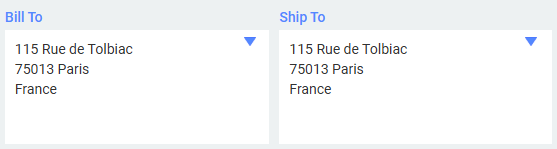
Step 3: Enter general information
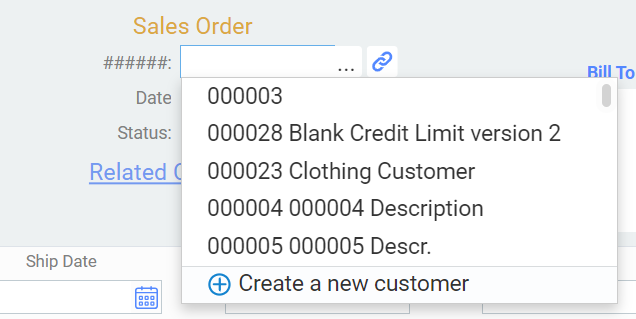
 button and search for the company using the drop down list.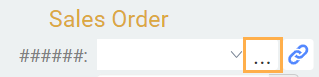

-
Step 4: Enter information in the business terms

-
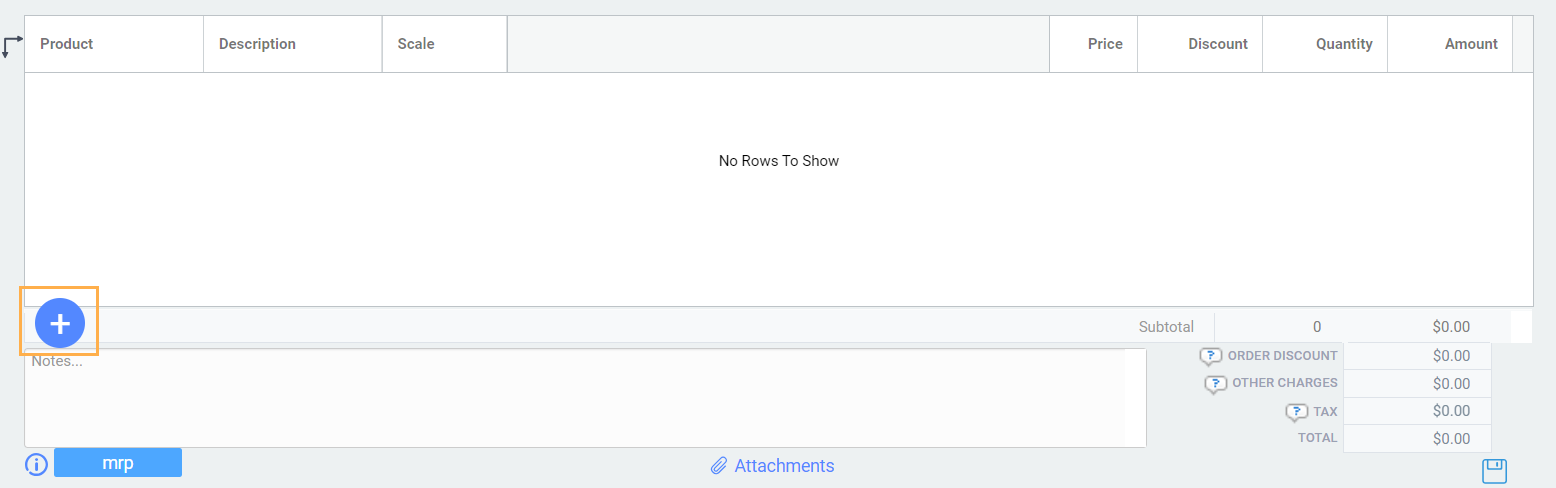
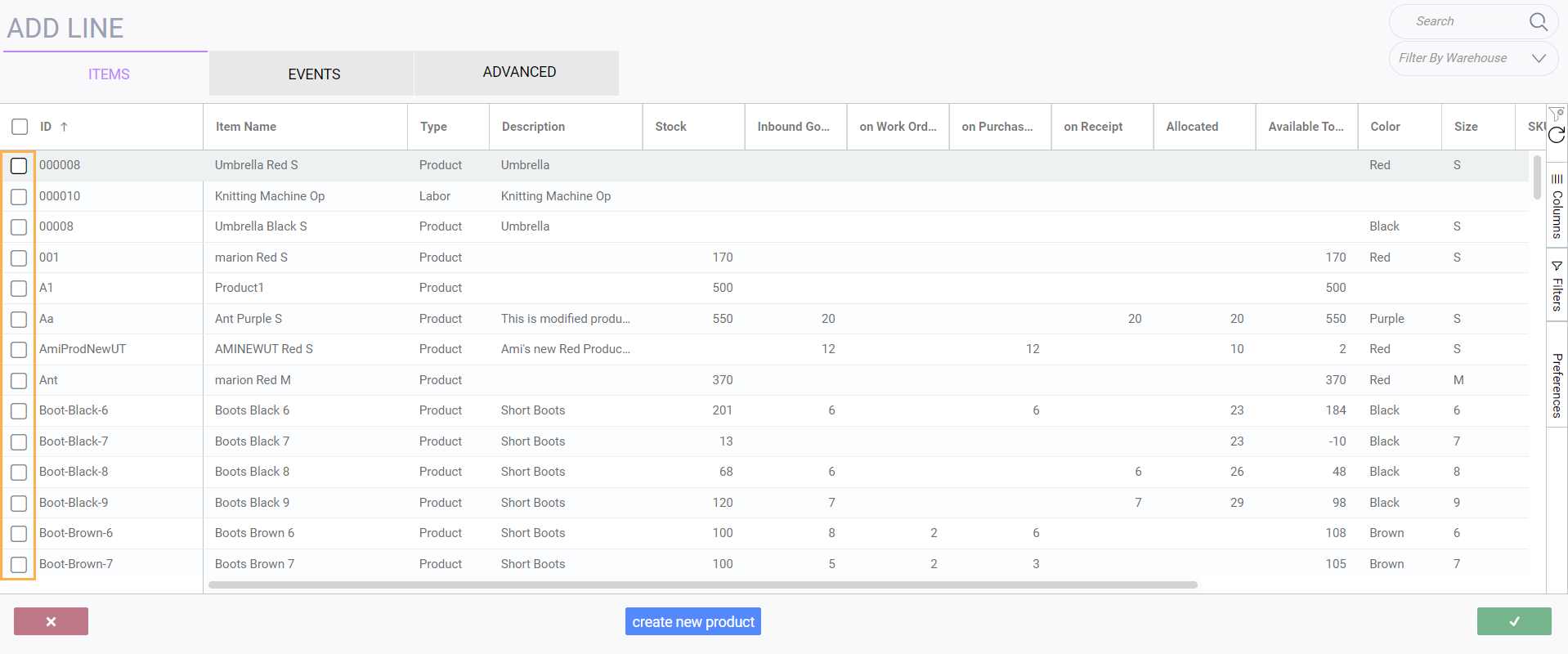
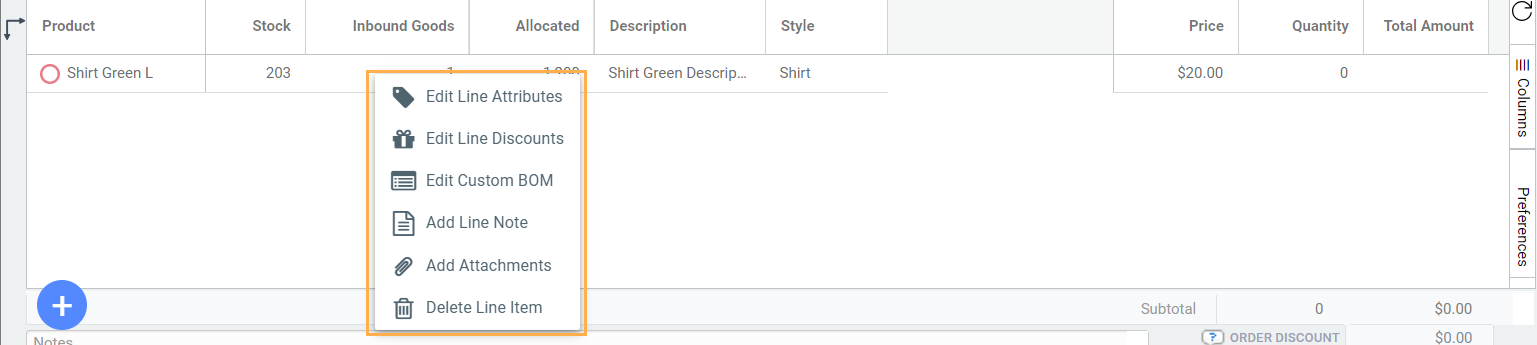
Step 5: Add products to your order


Step 6: Edit Header information
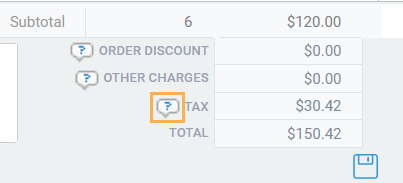
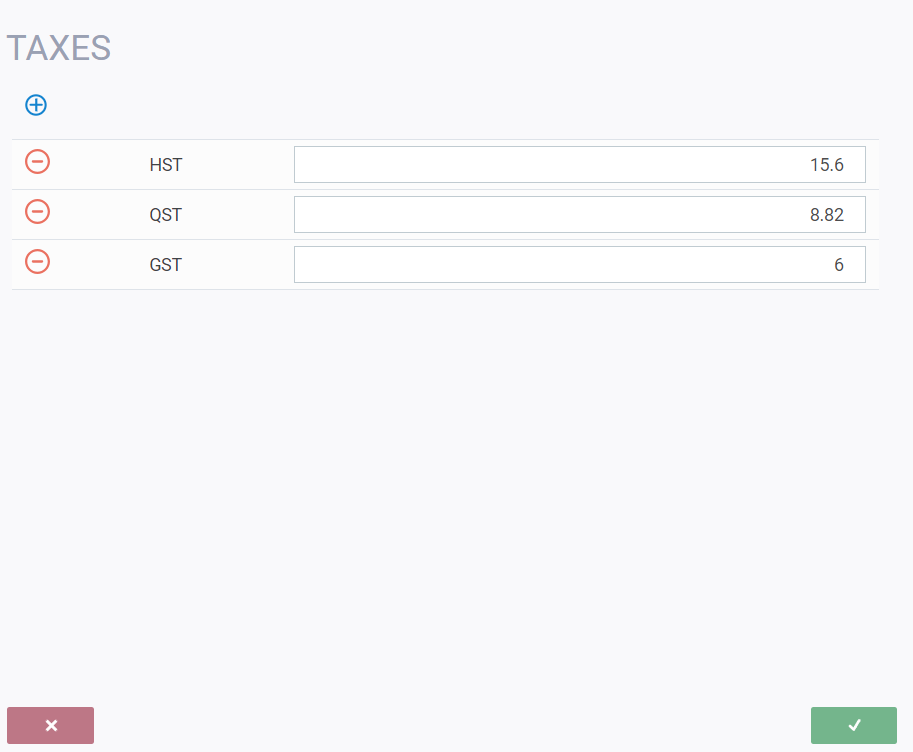
At the bottom of the order, there are fields for discounts and other charges. The other fields, tax and total, are calculated automatically. Discounts and other charges can be added to the transaction here. Click on either field and a modal will appear where you can make modifications based on the configuration in screen setup.
-
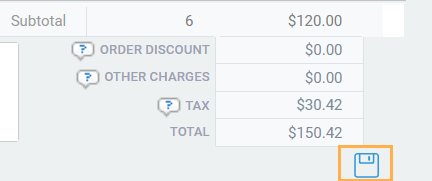
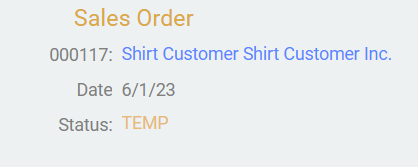
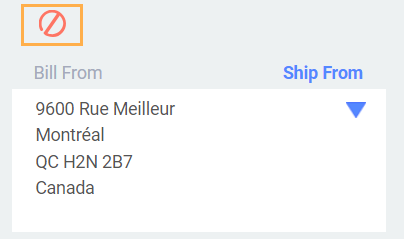
Step 7: Save your order
-
Step 8: Issue your order
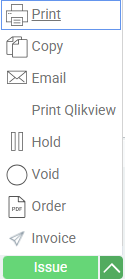
Click issue to change the status of your order so you can proceed to other steps.
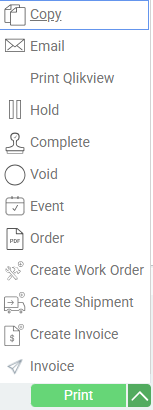
Once an order is issued, there will be other action options available to you, depending on the setup of your action button.
Scenario #2: Create an order from a purchase order
Select how you would like to create the order. In this case make sure the purchase orders tab is selected.
It is selected when purchase orders is highlighted in orange.
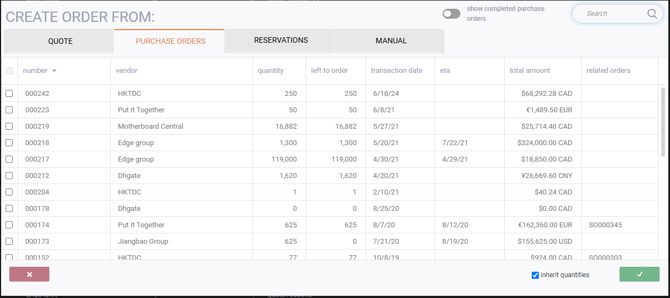
Select the purchase order you want to use to create the order by checking the corresponding box on the left. Once you select a purchase order, if there are multiple purchase orders for that vendor, only those purchase orders will show on the screen.
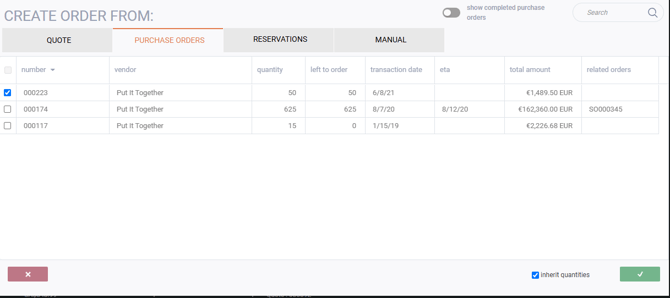
You can choose just one of the purchase orders, or multiple purchase orders to create your sales order.
To deselect a purchase order, uncheck the box.
Follow the rest of the instructions for creating manual sales orders to complete your sales order from a purchase order.
Scenario #3: Create sales orders from reservations
Select how you would like to create the order. In this case make sure the reservation tab is selected. It is selected when reservation is highlighted in orange.
Select the reservation(s) you want to use to create the order by checking the corresponding box on the left.
Once you select a reservation, if there are multiple reservations for that customer, only the reservations for that specific customer will show on the screen.
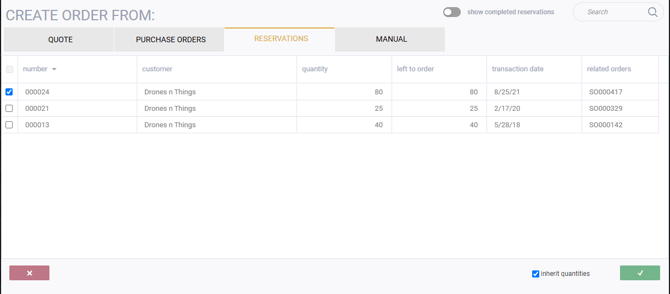
You can choose just one of the reservations, or multiple reservations to create your sales order.
To deselect a reservation, uncheck the box.
Follow the rest of the instructions for creating manual sales orders to complete your sales order from a reservation.
Scenario #4: Create a sales order from a quote
Select how you would like to create the order. In this case, make sure the quote tab is selected.
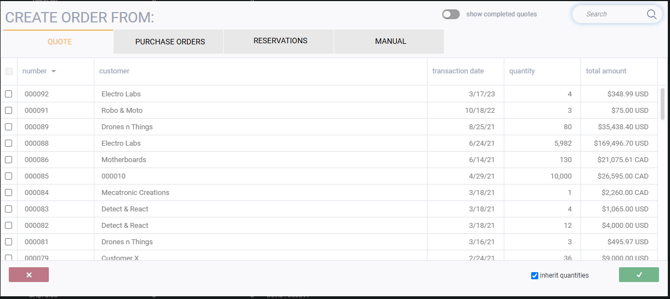
Select the quote(s) you want to use to create the order by checking the corresponding box on the left.
Once you select a quote, only the quotes for that specific vendor/customer will show on the screen.

You can choose to select one quote or multiple quotes for that vendor/customer to create your sales order. The selected quote(s) will show a blue check mark on the left side of the screen.
To deselect a quote, uncheck the box.
Once you are satisfied with your choice(s), click on the green check mark at the bottom right of the screen.
Follow the rest of the instructions for creating manual sales orders to complete your sales order from a quote.
Additional sales order information
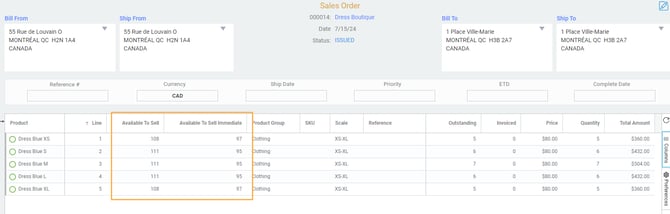

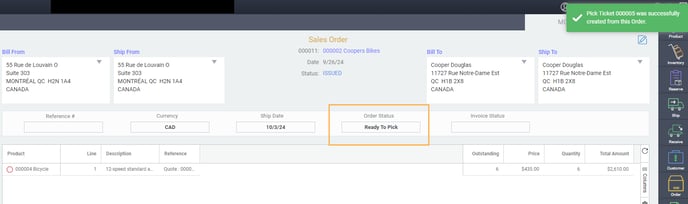
Store and view the order and invoice status on your source orders
Once a customer order is created and processed, it may pass through multiple transactions and statuses before it is completed and invoiced. You can view the current status of any order at any time. This information is also available in ParagonERP reporting tools.