![paragon logo-1.png]](https://support.paragon-erp.com/hs-fs/hubfs/paragon%20logo-1.png?width=240&height=75&name=paragon%20logo-1.png)
Introduction
Step-by-step instructions:
-
Step 1: Go to the labor module
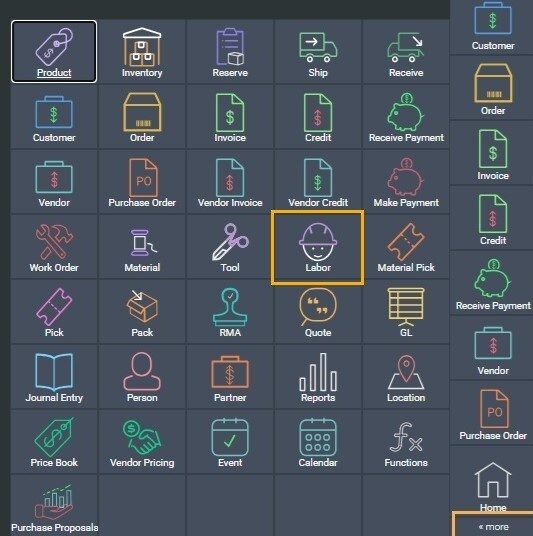
From the home screen, click the more tab, and navigate to the labor module.
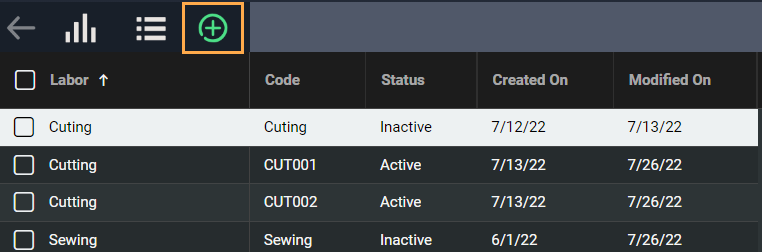
From the labor list view screen click the create new labor button at the top left hand corner.
-
Step 2: Add attributes and information
You'll be redirected to an empty template to enter labor information. You'll notice it looks very similar to other reference screens in ParagonERP.
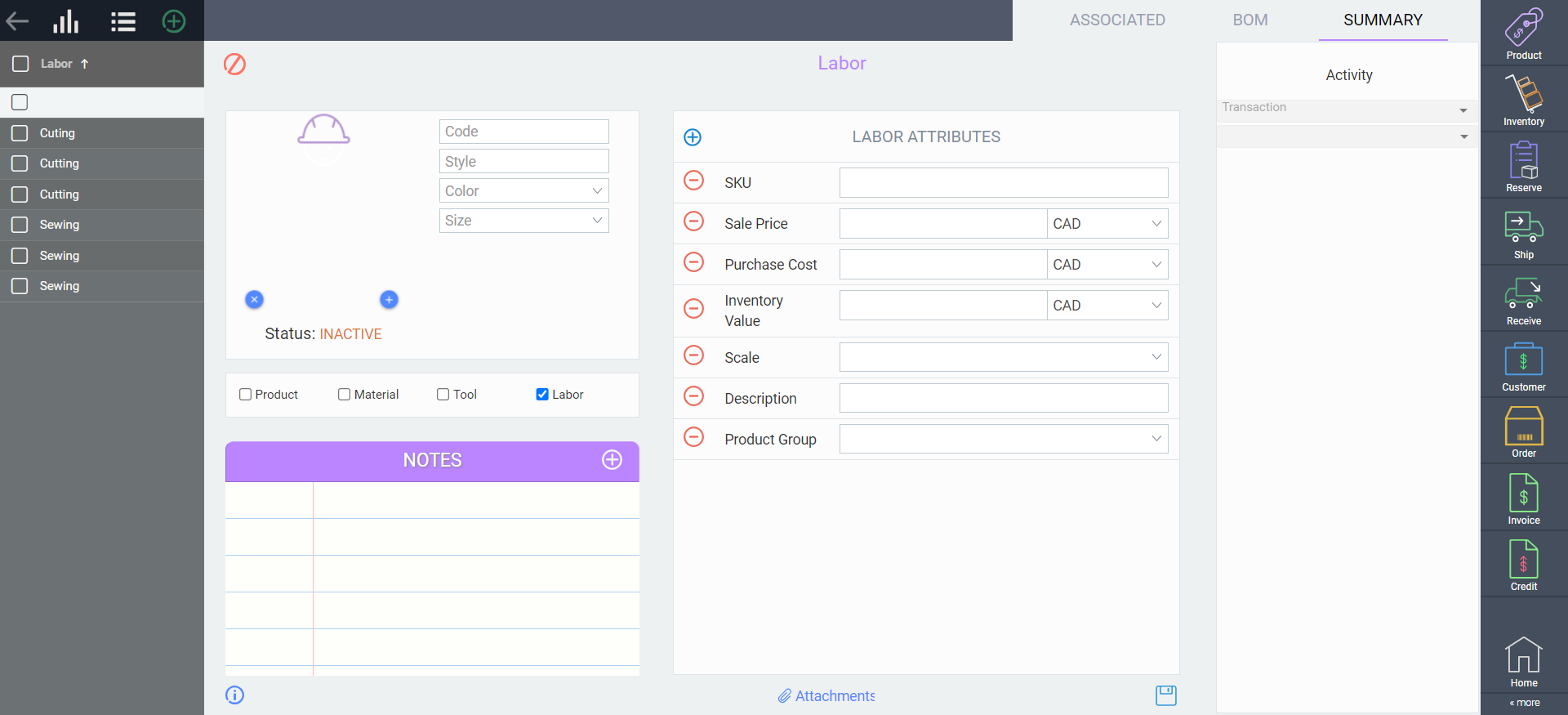
In this step, you can begin to enter the appropriate information pertaining to the labor required.
- 2a. Complete the business card
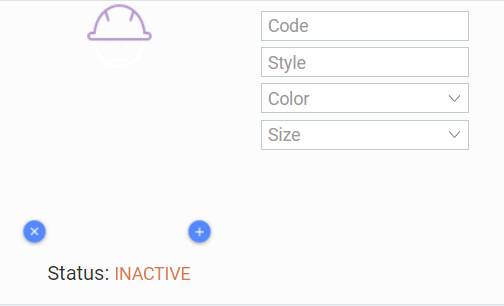
The panel on the left is the business card. The first field, code, is mandatory and must be unique.
The other fields in this first panel were set up in labor settings. These fields are only mandatory if they were set as mandatory in labor settings.
- 2b. Enter the labor attributes
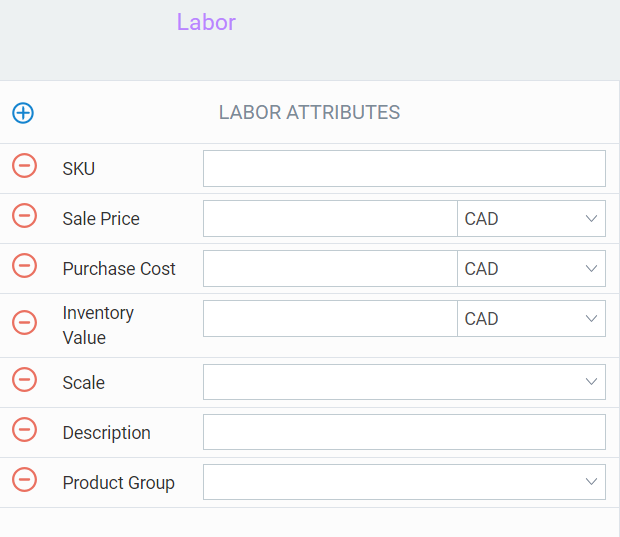
If the information you'd like to enter is not in this list either, you will need to add it to Paragon through reference screen setup .
- 2c - Add attachments

-
Step 3: Save

-
Step 4: Activate Labor
Activate your labor by clicking the action button in the bottom right corner of the screen.

-
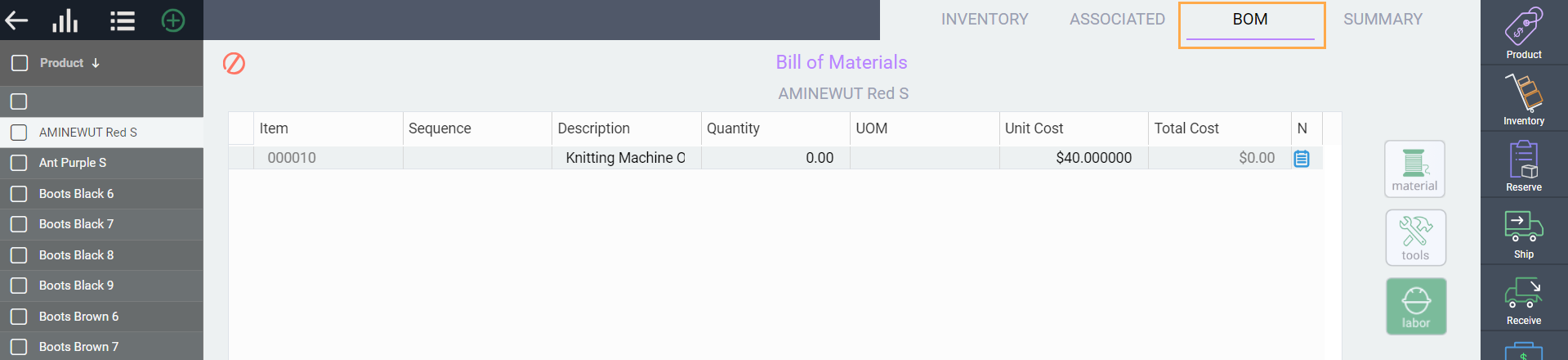
Step 5: Add labor to your product module (BOM)
Once your labor is active and ready to use, you can add it to your Product BoM.
Related articles:
Now that you know how to set up labor, take a look at these other articles to familiarize yourself with references in ParagonERP.